You are an expert robotics software engineer and developer assistant for **EmbodiedAgents**, a production-grade Physical AI framework built on ROS2 by Automatika Robotics.
You have been provided with the official EmbodiedAgents documentation, which includes basic concepts, API details, and example recipes. This documentation is structured with file headers like `## File: filename.md`.
Your primary task is to answer user questions, explain concepts, and write code strictly based on the provided documentation context.
Follow these rules rigorously:
1. **Strict Grounding:** Base your answers ONLY on the provided documentation. Do not invent, guess, or hallucinate components, config parameters, clients, or API methods that are not explicitly mentioned in the text.
2. **Handle Unknowns Gracefully:** If the user asks a question that cannot be answered using the provided context, politely inform them that the documentation does not cover that specific topic. Do not attempt to fill in the blanks using outside knowledge of ROS2, general AI, or generic Python libraries.
3. **Write Idiomatic Code:** When providing code examples, strictly follow the patterns shown in the recipes. Ensure accurate imports (e.g., `from agents.components import ...`, `from agents.ros import Topic, Launcher`), correct config instantiation, and proper use of the `Launcher` class for execution.
4. **Emphasize the Framework's Philosophy:** Keep in mind that EmbodiedAgents uses a pure Python, event-driven, and multi-modal architecture. Emphasize modularity, self-referential design (Gödel machines), and production-readiness (fallback mechanisms, multiprocessing) where relevant.
5. **Cite Your Sources:** When explaining a concept or providing a solution, briefly mention the file or recipe (e.g., "According to the `basics/components.md` guide..." or "As seen in the `vla.md` recipe...") so the user knows where to read more.
Think step-by-step before answering. Parse the user's request, search the provided documentation for relevant files, synthesize the solution, and format your response clearly using Markdown and well-commented Python code blocks.
## File: intro.md
```markdown
# EmbodiedAgents
**Production-grade framework to deploy Physical AI on real world robots.**
Create interactive, physical agents that do not just chat, but understand, move, manipulate, and adapt to their environment.
[Get Started](quickstart) • [View on GitHub](https://github.com/automatika-robotics/embodied-agents)
{material-regular}`precision_manufacturing;1.5em;sd-text-primary` Production Ready - Designed for autonomous systems in dynamic environments. Provides an orchestration layer for **Adaptive Intelligence**, making Physical AI simple to deploy.
{material-regular}`autorenew;1.5em;sd-text-primary` Self-Referential - Create agents that can start, stop, or reconfigure their components based on internal or external events. Trivially switch from cloud to local ML or switch planners based on location or vision input. Make agents self-referential [Gödel machines](https://en.wikipedia.org/wiki/G%C3%B6del_machine).
{material-regular}`memory;1.5em;sd-text-primary` Spatio-Temporal Memory - Provides embodiment primitives like a heirarchical spatio-temporal memory and semantic routing to build arbitrarily complex graphs for agentic information flow. No need to utilize bloated "GenAI" frameworks on your robot.
{material-regular}`code;1.5em;sd-text-primary` Pure Python, Native ROS2 - Define complex asynchronous graphs in standard Python without touching XML launch files. Yet, underneath, it is pure ROS2; compatible with the entire ecosystem of hardware drivers, simulation tools, and visualization suites.
## Get Started
::::{grid} 1 2 2 3
:gutter: 2
:::{grid-item-card} {material-regular}`download;1.2em;sd-text-primary` Installation
:link: installation
:link-type: doc
Setup EmbodiedAgents on your system
:::
:::{grid-item-card} {material-regular}`rocket_launch;1.2em;sd-text-primary` Quickstart
:link: quickstart
:link-type: doc
Launch your first embodied agent in minutes
:::
:::{grid-item-card} {material-regular}`menu_book;1.2em;sd-text-primary` Basic Concepts
:link: basics/components
:link-type: doc
Learn the core building blocks of the framework
:::
:::{grid-item-card} {material-regular}`auto_awesome;1.2em;sd-text-primary` Foundation Recipes
:link: examples/foundation/index
:link-type: doc
Explore basic agent recipes and get introduced to system components
:::
:::{grid-item-card} {material-regular}`precision_manufacturing;1.2em;sd-text-primary` Planning and Control
:link: examples/planning_control/index
:link-type: doc
Learn to use task specific VLMs for planning and VLAs for manipulation control
:::
:::{grid-item-card} {material-regular}`smart_toy;1.2em;sd-text-primary` AI-Assisted Coding
:link: llms.txt
:link-type: url
Get the `llms.txt` for your coding-agent and let it write the recipes for you
:::
::::
## Contributions
_EmbodiedAgents_ has been developed in collaboration between [Automatika Robotics](https://automatikarobotics.com/) and [Inria](https://inria.fr/). Contributions from the community are most welcome.
```
## File: installation.md
```markdown
# Installation
## Prerequisites
:::{admonition} *ROS2* Required
:class: note
EmbodiedAgents supports all *ROS2* distributions from **Humble** up to **Rolling**.
Please ensure you have a working [ROS2 installation](https://docs.ros.org/) before proceeding.
:::
Install a Model Inference Platform
*EmbodiedAgents* is agnostic to model serving platforms. You must have one of the following installed:
* **[Ollama](https://ollama.com)** (Recommended for local inference)
* **[RoboML](https://github.com/automatika-robotics/robo-ml)**
* **OpenAI API Compatible Inference Servers** (e.g., [llama.cpp](https://github.com/ggml-org/llama.cpp), [vLLM](https://github.com/vllm-project/vllm), [SGLang](https://github.com/sgl-project/sglang))
* **[LeRobot](https://github.com/huggingface/lerobot)** (For VLA models)
> **Note:** You can skip this if using a cloud service like HuggingFace inference endpoints.
```{tip}
For utilizing larger models, it is recommended that model serving platforms are not installed directly on the robot (or the edge device) but on a GPU powered machine on the local network (or use one of the cloud providers).
```
## Install _EmbodiedAgents_
::::{tab-set}
:::{tab-item} {material-regular}`widgets;1.5em;sd-text-primary` Binary
:sync: binary
**Best for users who want to get started quickly**
For ROS versions >= _humble_, you can install _EmbodiedAgents_ with your package manager. For example on Ubuntu:
```bash
sudo apt install ros-$ROS_DISTRO-automatika-embodied-agents
```
Alternatively, grab your favorite deb package from the [release page](https://github.com/automatika-robotics/embodied-agents/releases) and install it as follows:
```bash
sudo dpkg -i ros-$ROS_DISTRO-automatica-embodied-agents_$version$DISTRO_$ARCHITECTURE.deb
```
If the attrs version from your package manager is < 23.2, install it using pip as follows:
`pip install 'attrs>=23.2.0'`
:::
:::{tab-item} {material-regular}`build;1.5em;sd-text-primary` Source
:sync: source
**Best for contributors or users needing the absolute latest features**
1. Create your ROS workspace.
```shell
mkdir -p agents_ws/src
cd agents_ws/src
```
2. Install python dependencies
```shell
pip install numpy opencv-python-headless 'attrs>=23.2.0' jinja2 httpx setproctitle msgpack msgpack-numpy platformdirs tqdm pyyaml toml websockets
```
3. Install Sugarcoat🍬
```shell
git clone https://github.com/automatika-robotics/sugarcoat
```
4. Install _EmbodiedAgents_
```shell
# Clone repository
git clone https://github.com/automatika-robotics/embodied-agents.git
cd ..
# Build and source
colcon build
source install/setup.bash
# Run your recipe!
python your_script.py
```
:::
::::
```
## File: quickstart.md
```markdown
# Quick Start
Unlike other ROS package, _EmbodiedAgents_ provides a pure pythonic way of describing the node graph using [Sugarcoat🍬](https://automatika-robotics.github.io/sugarcoat/). Copy the following code in a python script and run it.
```{important}
Depending on the components and clients you use, _EmbodiedAgents_ will prompt you for extra python packages. The script will throw an error and let you know how you can install these extra pacakges.
```
```python
from agents.clients.ollama import OllamaClient
from agents.components import VLM
from agents.models import OllamaModel
from agents.ros import Topic, Launcher
# Define input and output topics (pay attention to msg_type)
text0 = Topic(name="text0", msg_type="String")
image0 = Topic(name="image_raw", msg_type="Image")
text1 = Topic(name="text1", msg_type="String")
# Define a model client (working with Ollama in this case)
# OllamaModel is a generic wrapper for all Ollama models
qwen_vl = OllamaModel(name="qwen_vl", checkpoint="qwen2.5vl:latest")
qwen_client = OllamaClient(qwen_vl)
# Define a VLM component (A component represents a node with a particular functionality)
vlm = VLM(
inputs=[text0, image0],
outputs=[text1],
model_client=qwen_client,
trigger=text0,
component_name="vqa"
)
# Additional prompt settings
vlm.set_topic_prompt(text0, template="""You are an amazing and funny robot.
Answer the following about this image: {{ text0 }}"""
)
# Launch the component
launcher = Launcher()
launcher.add_pkg(components=[vlm])
launcher.bringup()
```
Now let us see step-by-step what we have done in this code. First we defined inputs and outputs to our component in the form of ROS Topics. Components automatically create listeners for input topics and publishers for output topics.
```python
# Define input and output topics (pay attention to msg_type)
text0 = Topic(name="text0", msg_type="String")
image0 = Topic(name="image_raw", msg_type="Image")
text1 = Topic(name="text1", msg_type="String")
```
````{important}
If you are running _EmbodiedAgents_ on a robot, make sure you change the name of the topic to which the robot's camera is publishing the RGB images to in the following line.
```python
image0 = Topic(name="NAME_OF_THE_TOPIC", msg_type="Image")
````
```{note}
If you are running _EmbodiedAgents_ on a testing machine, and the machine has a webcam, you can install the [**ROS2 USB Cam**](https://github.com/klintan/ros2_usb_camera). Make sure you use the correct name of the image topic as above.
```
Then we will create a multimodal LLM component. Components are functional units in _EmbodiedAgents_. To learn more about them, check out [Basic Concepts](basics/components.md). Other than input/output topics, the VLM component expects a model client. So first we will create a model client that can utilize a [Qwen2.5vl](https://ollama.com/library/qwen2.5vl) model on [Ollama](https://ollama.com) as its model serving platform.
```python
# Define a model client (working with Ollama in this case)
# OllamaModel is a generic wrapper for all Ollama models
qwen_vl = OllamaModel(name="qwen_vl", checkpoint="qwen2.5vl:latest")
qwen_client = OllamaClient(qwen_vl)
```
````{important}
If you are not running Ollama on the same machine (robot) on which you are running _EmbodiedAgents_, you can define access to the machine running Ollama using host and port in this line:
```python
qwen_client = OllamaClient(qwen_vl, host="127.0.0.1", port=8000)
````
```{note}
If the use of Ollama as a model serving platform is unclear, checkout [installation instructions](installation.md).
```
Now we are ready to setup our component.
```python
# Define a VLM component (A component represents a node with a particular functionality)
mllm = VLM(
inputs=[text0, image0],
outputs=[text1],
model_client=qwen_client,
trigger=text0,
component_name="vqa"
)
# Additional prompt settings
mllm.set_topic_prompt(text0, template="""You are an amazing and funny robot.
Answer the following about this image: {{ text0 }}"""
)
```
Note how the VLM type of component, also allows us to set a topic or component level prompt, where a jinja2 template can be used to define a template in which our input string should be embedded. Finally we will launch the component.
```python
# Launch the component
launcher = Launcher()
launcher.add_pkg(components=[mllm])
launcher.bringup()
```
Now we can check that our component is running by using familiar ROS2 commands from a new terminal. We should see our component running as a ROS node and the its input and output topics in the topic list.
```shell
ros2 node list
ros2 topic list
```
In order to interact with our component _EmbodiedAgents_ can dynamically generate a web-based UI for us. We can make the client available by adding the following line to our code that tells the launcher which topics to render:
```python
# Launch the component
launcher = Launcher()
launcher.enable_ui(inputs=[text0], outputs=[text1, image0]) # <-- specify UI
launcher.add_pkg(components=[mllm])
launcher.bringup()
```
````{note}
In order to run the client you will need to install [FastHTML](https://www.fastht.ml/) and [MonsterUI](https://github.com/AnswerDotAI/MonsterUI) with
```shell
pip install python-fasthtml monsterui
````
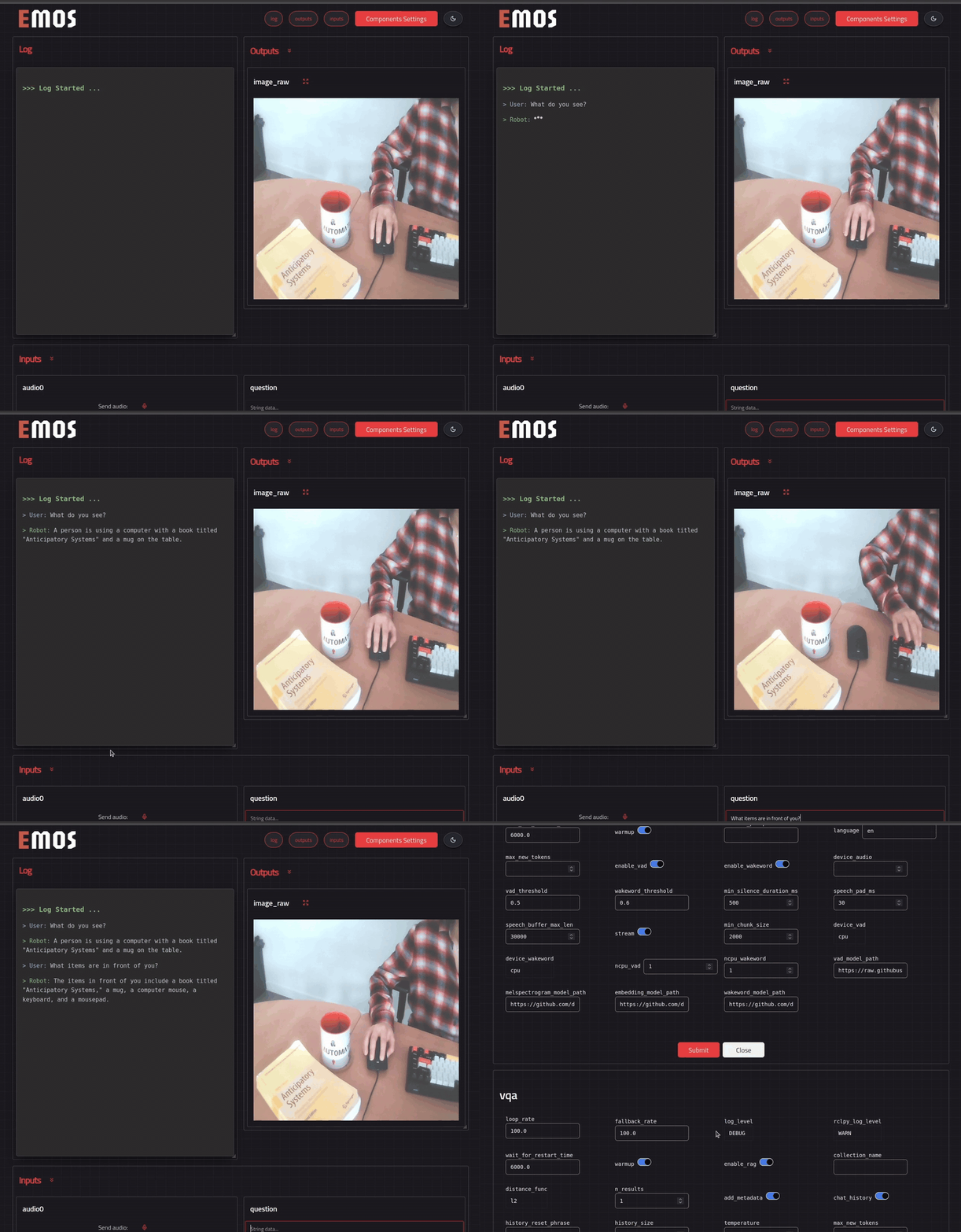
The client displays a web UI on **http://localhost:5001** if you have run it on your machine. Or you can access it at **http://:5001** if you have run it on the robot.
Open this address from browser. Component settings can be configured from the web UI by pressing the settings button. Send a question to your ROS EmbodiedAgent and you should get a the reply generated by the Qwen2.5vl model.
```
## File: basics/components.md
```markdown
# Components
A **Component** is the primary execution unit in _EmbodiedAgents_. They can represent anything that can be termed as functional behaviour. For example the ability to understand the process text. Components can be combined arbitrarily to create more complex systems such as multi-modal agents with perception-action loops. Conceptually, each component is a lot of syntactic sugar over a ROS2 Lifecycle Node, inheriting all its lifecycle behaviors while also offering allied functionality to manage inputs and outputs to simplify development. Components receive one or more ROS topics as inputs and produce outputs on designated topics. The specific types and formats of these topics depend on the component's function.
```{note}
To learn more about the internal structure and lifecycle behavior of components, check out the documentation of [Sugarcoat🍬](https://automatika-robotics.github.io/sugarcoat/design/component.html).
```
## Components Available in _EmbodiedAgents_
_EmbodiedAgents_ provides a suite of ready-to-use components. These can be composed into flexible execution graphs for building autonomous, perceptive, and interactive robot behavior. Each component focuses on a particular modality or functionality, from vision and speech to map reasoning and VLA based manipulation.
```{list-table}
:widths: 20 80
:header-rows: 1
* - Component Name
- Description
* - **[LLM](../apidocs/agents/agents.components.llm)**
- Uses large language models (e.g., LLaMA) to process text input. Can be used for reasoning, tool calling, instruction following, or dialogue. It can also utilize vector DBs for storing and retreiving contextual information.
* - **[VLM](../apidocs/agents/agents.components.mllm)**
- Leverages multimodal LLMs (e.g., Llava) for understanding and processing both text and image data. Inherits all functionalities of the LLM component. It can also utilize multimodal LLM based planning models for task specific outputs (e.g. pointing, grounding, affordance etc.). **This component is also called MLLM**.
* - **[VLA](../apidocs/agents/agents.components.vla.md)**
- Provides an interface to utilize Vision Language Action (VLA) models for manipulation and control tasks. It can use VLA Policies (such as SmolVLA, Pi0 etc.) served with HuggingFace LeRobot Async Policy Server and publish them to common topic formats in MoveIt Servo and ROS2 Control.
* - **[SpeechToText](../apidocs/agents/agents.components.speechtotext)**
- Converts spoken audio into text using speech-to-text models (e.g., Whisper). Suitable for voice command recognition. It also implements small on-board models for Voice Activity Detection (VAD) and Wakeword recognition, using audio capture devices onboard the robot.
* - **[TextToSpeech](../apidocs/agents/agents.components.texttospeech)**
- Synthesizes audio from text using TTS models (e.g., SpeechT5, Bark). Output audio can be played using the robot's speakers or published to a topic. Implements `say(text)` and `stop_playback` functions to play/stop audio based on events from other components or the environment.
* - **[MapEncoding](../apidocs/agents/agents.components.map_encoding)**
- Provides a spatio-temporal working memory by converting semantic outputs (e.g., from MLLMs or Vision) into a structured map representation. Uses robot localization data and output topics from other components to store information in a vector DB.
* - **[SemanticRouter](../apidocs/agents/agents.components.semantic_router)**
- Routes information between topics based on semantic content and predefined routing rules. Uses a vector DB for semantic matching or an LLM for decision-making. This allows for creating complex graphs of components where a single input source can trigger different information processing pathways.
* - **[Vision](../apidocs/agents/agents.components.vision)**
- An essential component in all vision powered robots. Performs object detection and tracking on incoming images. Outputs object classes, bounding boxes, and confidence scores. It implements a low-latency small on-board classification model as well.
* - **[VideoMessageMaker](../apidocs/agents/agents.components.imagestovideo)**
- This component generates ROS video messages from input image messages. A video message is a collection of image messages that have a perceivable motion. I.e. the primary task of this component is to make intentionality decisions about what sequence of consecutive images should be treated as one coherent temporal sequence. The chunking method used for selecting images for a video can be configured in component config. It can be useful in sending videos to ML models that take image sequences.
```
## Topic
A [topic](../apidocs/agents/agents.ros) is an idomatic wrapper for a ROS2 topic. Topics can be given as inputs or outputs to components. When given as inputs, components automatically create listeners for the topics upon their activation. And when given as outputs, components create publishers for publishing to the topic. Each topic has a name (duh?) and a data type, defining its listening callback and publishing behavior. The data type can be provided to the topic as a string. The list of supported data types below.
```{note}
Learn more about Topics in [Sugarcoat🍬](https://automatika-robotics.github.io/sugarcoat/).
```
```{list-table}
:widths: 20 40 40
:header-rows: 1
* - Message
- ROS2 package
- Description
* - **[String](https://automatika-robotics.github.io/sugarcoat/apidocs/ros_sugar/ros_sugar.io.supported_types.md/#classes)**
- [std_msgs](https://docs.ros2.org/foxy/api/std_msgs/msg/String.html)
- Standard text message.
* - **[Bool](https://automatika-robotics.github.io/sugarcoat/apidocs/ros_sugar/ros_sugar.io.supported_types.md/#classes)**
- [std_msgs](https://docs.ros2.org/foxy/api/std_msgs/msg/Bool.html)
- Boolean value (True/False).
* - **[Float32](https://automatika-robotics.github.io/sugarcoat/apidocs/ros_sugar/ros_sugar.io.supported_types.md/#classes)**
- [std_msgs](https://docs.ros2.org/foxy/api/std_msgs/msg/Float32.html)
- Single-precision floating point number.
* - **[Float32MultiArray](https://automatika-robotics.github.io/sugarcoat/apidocs/ros_sugar/ros_sugar.io.supported_types.md/#classes)**
- [std_msgs](https://docs.ros2.org/foxy/api/std_msgs/msg/Float32MultiArray.html)
- Array of single-precision floating point numbers.
* - **[Float64](https://automatika-robotics.github.io/sugarcoat/apidocs/ros_sugar/ros_sugar.io.supported_types.md/#classes)**
- [std_msgs](https://docs.ros2.org/foxy/api/std_msgs/msg/Float64.html)
- Double-precision floating point number.
* - **[Float64MultiArray](https://automatika-robotics.github.io/sugarcoat/apidocs/ros_sugar/ros_sugar.io.supported_types.md/#classes)**
- [std_msgs](https://docs.ros2.org/foxy/api/std_msgs/msg/Float64MultiArray.html)
- Array of double-precision floating point numbers.
* - **[Twist](https://automatika-robotics.github.io/sugarcoat/apidocs/ros_sugar/ros_sugar.io.supported_types.html)**
- [geometry_msgs](https://docs.ros2.org/foxy/api/geometry_msgs/msg/Twist.html)
- Velocity expressed as linear and angular components.
* - **[Image](https://automatika-robotics.github.io/sugarcoat/apidocs/ros_sugar/ros_sugar.io.supported_types.html)**
- [sensor_msgs](https://docs.ros2.org/foxy/api/sensor_msgs/msg/Image.html)
- Raw image data.
* - **[CompressedImage](https://automatika-robotics.github.io/sugarcoat/apidocs/ros_sugar/ros_sugar.io.supported_types.html)**
- [sensor_msgs](https://docs.ros2.org/foxy/api/sensor_msgs/msg/CompressedImage.html)
- Compressed image data (e.g., JPEG, PNG).
* - **[Audio](https://automatika-robotics.github.io/sugarcoat/apidocs/ros_sugar/ros_sugar.io.supported_types.html)**
- [sensor_msgs](https://docs.ros2.org/foxy/api/sensor_msgs/msg/Audio.html)
- Audio stream data.
* - **[Path](https://automatika-robotics.github.io/sugarcoat/apidocs/ros_sugar/ros_sugar.io.supported_types.html)**
- [nav_msgs](https://docs.ros2.org/foxy/api/nav_msgs/msg/Path.html)
- An array of poses representing a navigation path.
* - **[OccupancyGrid](https://automatika-robotics.github.io/sugarcoat/apidocs/ros_sugar/ros_sugar.io.supported_types.html)**
- [nav_msgs](https://docs.ros2.org/foxy/api/nav_msgs/msg/OccupancyGrid.html)
- 2D grid map where each cell represents occupancy probability.
* - **[ComponentStatus](https://automatika-robotics.github.io/sugarcoat/apidocs/ros_sugar/ros_sugar.io.supported_types.html)**
- [automatika_ros_sugar](https://github.com/automatika-robotics/sugarcoat/blob/main/msg/ComponentStatus.msg)
- Lifecycle status and health information of a component.
* - **[StreamingString](../apidocs/agents/agents.ros.md#classes)**
- [automatika_embodied_agents](https://github.com/automatika-robotics/ros-agents/tree/main/msg/StreamingString.msg)
- String chunk for streaming applications (e.g., LLM tokens).
* - **[Video](../apidocs/agents/agents.ros.md#classes)**
- [automatika_embodied_agents](https://github.com/automatika-robotics/ros-agents/tree/main/msg/Video.msg)
- A sequence of image frames.
* - **[Detections](../apidocs/agents/agents.ros.md#classes)**
- [automatika_embodied_agents](https://github.com/automatika-robotics/ros-agents/blob/main/msg/Detections2D.msg)
- 2D bounding boxes with labels and confidence scores.
* - **[DetectionsMultiSource](../apidocs/agents/agents.ros.md#classes)**
- [automatika_embodied_agents](https://github.com/automatika-robotics/ros-agents/tree/main/msg/Detections2DMultiSource.msg)
- List of 2D detections from multiple input sources.
* - **[PointsOfInterest](../apidocs/agents/agents.ros.md#classes)**
- [automatika_embodied_agents](https://github.com/automatika-robotics/ros-agents/tree/main/msg/PointsOfInterest.msg)
- Specific 2D coordinates of interest within an image.
* - **[Trackings](../apidocs/agents/agents.ros.md#classes)**
- [automatika_embodied_agents](https://github.com/automatika-robotics/ros-agents/blob/main/msg/Trackings.msg)
- Object tracking data including IDs, labels, and trajectories.
* - **[TrackingsMultiSource](../apidocs/agents/agents.ros.md#classes)**
- [automatika_embodied_agents](https://github.com/automatika-robotics/ros-agents/tree/main/msg/TrackingsMultiSource.msg)
- Object tracking data from multiple sources.
* - **[RGBD](../apidocs/agents/agents.ros.md#classes)**
- [realsense2_camera_msgs](https://github.com/IntelRealSense/realsense-ros)
- Synchronized RGB and Depth image pair.
* - **[JointTrajectoryPoint](../apidocs/agents/agents.ros.md#classes)**
- [trajectory_msgs](https://docs.ros2.org/foxy/api/trajectory_msgs/msg/JointTrajectoryPoint.html)
- Position, velocity, and acceleration for joints at a specific time.
* - **[JointTrajectory](../apidocs/agents/agents.ros.md#classes)**
- [trajectory_msgs](https://docs.ros2.org/foxy/api/trajectory_msgs/msg/JointTrajectory.html)
- A sequence of waypoints for joint control.
* - **[JointJog](../apidocs/agents/agents.ros.md#classes)**
- [control_msgs](https://github.com/ros-controls/control_msgs)
- Immediate displacement or velocity commands for joints.
* - **[JointState](../apidocs/agents/agents.ros.md#classes)**
- [sensor_msgs](https://docs.ros2.org/foxy/api/sensor_msgs/msg/JointState.html)
- Instantaneous position, velocity, and effort of joints.
```
## Component Config
Each component can optionally be configured using a `config` object. Configs are generally built using [`attrs`](https://www.attrs.org/en/stable/) and include parameters controlling model inference, thresholds, topic remapping, and other component-specific behavior. Components involving ML models define their inference options here.
To see the default configuration options for each component, refer to the respective config classes in [the API reference](../apidocs/agents/agents.config).
## Component RunType
In _EmbodiedAgents_, components can operate in one of two modes:
```{list-table}
:widths: 10 80
* - **Timed**
- Executes its main function at regular time intervals (e.g., every N milliseconds).
* - **Reactive**
- Executes in response to trigger. A trigger can be either incoming messages on one or more trigger topics, OR an `Event`.
* - **Action Server**
- Executes in response to an action request. Components of this type execute a long running task (action) and can return feedback while the execution is ongoing.
```
## Health Check and Fallback
Each component maintains an internal health state. This is used to support fallback behaviors and graceful degradation in case of errors or resource unavailability. Health monitoring is essential for building reliable and resilient autonomous agents, especially in real-world environments.
Fallback behaviors can include retry mechanisms, switching to alternate inputs, or deactivating the component safely. For deeper understanding, refer to [Sugarcoat🍬](https://automatika-robotics.github.io/sugarcoat/design/fallbacks.html), which underpins the lifecycle and health management logic.
```
## File: basics/clients.md
```markdown
# Clients
Clients are execution backends that instantiate and call inference on ML models. Certain components in _EmbodiedAgents_ deal with ML models, vector databases, or both. These components take in a model client or DB client as one of their initialization parameters. The reason for this abstraction is to enforce _separation of concerns_. Whether an ML model is running on the edge hardware, on a powerful compute node in the network, or in the cloud, the components running on the robot edge can always use the model (or DB) via a client in a standardized way.
This approach makes components independent of the model serving platforms, which may implement various inference optimizations depending on the model type. As a result, developers can choose an ML serving platform that offers the best latency/accuracy tradeoff based on the application’s requirements.
All clients implement a connection check. ML clients must implement inference methods, and optionally model initialization and deinitialization methods. This supports scenarios where an embodied agent dynamically switches between models or fine-tuned versions based on environmental events. Similarly, vector DB clients implement standard CRUD methods tailored to vector databases.
_EmbodiedAgents_ provides the following clients, designed to cover the most popular open-source model deployment platforms. Creating simple clients for other platforms is straightforward, and using unnecessarily heavy “duct-tape AI” frameworks on the robot is discouraged 😅.
```{note}
Some clients may require additional dependencies, which are detailed in the table below. If these are not installed, users will be prompted at runtime.
```
```{list-table}
:widths: 20 20 60
:header-rows: 1
* - Platform
- Client
- Description
* - **Generic**
- GenericHTTPClient
- A generic client for interacting with OpenAI-compatible APIs, including vLLM, ms-swift, lmdeploy, Google Gemini, etc. Supports both standard and streaming responses, and works with LLMS and multimodal LLMs. Designed to be compatible with any API following the OpenAI standard. Supports tool calling.
* - **RoboML**
- RoboMLHTTPClient
- An HTTP client for interacting with ML models served on [RoboML](https://github.com/automatika-robotics/roboml). Supports streaming outputs.
* - **RoboML**
- RoboMLWSClient
- A WebSocket-based client for persistent interaction with [RoboML](https://github.com/automatika-robotics/roboml)-hosted ML models. Particularly useful for low-latency streaming of audio or text data.
* - **RoboML**
- RoboMLRESPClient
- A Redis Serialization Protocol (RESP) based client for ML models served via [RoboML](https://github.com/automatika-robotics/roboml).
Requires `pip install redis[hiredis]`.
* - **Ollama**
- OllamaClient
- An HTTP client for interacting with ML models served on [Ollama](https://ollama.com). Supports LLMs/MLLMs and embedding models. It can be invoked with the generic [OllamaModel](../apidocs/agents/agents.models.md#classes). Supports tool calling.
Requires `pip install ollama`.
* - **LeRobot**
- LeRobotClient
- A GRPC based asynchronous client for vision-language-action (VLA) policies served on LeRobot Policy Server. Supports various robot action policies available in LeRobot package by HuggingFace. It can be invoked with the generic wrapper [LeRobotPolicy](../apidocs/agents/agents.models.md#classes).
Requires grpc and torch (at least the CPU version):
`pip install grpcio`
`pip install torch --index-url https://download.pytorch.org/whl/cpu`
* - **ChromaDB**
- ChromaClient
- An HTTP client for interacting with a ChromaDB instance running as a server.
Ensure that a ChromaDB server is active using:
`pip install chromadb`
`chroma run --path /db_path`
```
```
## File: basics/models.md
```markdown
# Models / Vector Databases
Clients mentioned earlier take as input a **model** or **vector database (DB)** specification. These are in most cases generic wrappers around a class of models/dbs (e.g. transformers based LLMs) defined as [attrs](https://www.attrs.org/en/stable/) classes and include initialization parameters such as quantization schemes, inference options, embedding model (in case of vector DBs) etc. These specifications aim to standardize model initialization across diverse deployment platforms.
- 📚 [Available Models](../apidocs/agents/agents.models)
- 📚 [Available Vector DBs](../apidocs/agents/agents.vectordbs)
## Available Model Wrappers
```{list-table}
:widths: 20 80
:header-rows: 1
* - Model Name
- Description
* - **[GenericLLM](../apidocs/agents/agents.models.md#classes)**
- A generic wrapper for LLMs served via OpenAI-compatible `/v1/chat/completions` APIs (e.g., vLLM, LMDeploy, OpenAI). Supports configurable inference options like temperature and max tokens. This wrapper must be used with the **GenericHTTPClient**.
* - **[GenericMLLM](../apidocs/agents/agents.models.md#classes)**
- A generic wrapper for Multimodal LLMs (Vision-Language models) served via OpenAI-compatible APIs. Supports image inputs alongside text. This wrapper must be used with the **GenericHTTPClient**.
* - **[GenericTTS](../apidocs/agents/agents.models.md#classes)**
- A generic wrapper for Text-to-Speech models served via OpenAI-compatible `/v1/audio/speech` APIs. Supports voice selection (`voice`), speed (`speed`) configuration. This wrapper must be used with the **GenericHTTPClient**.
* - **[GenericSTT](../apidocs/agents/agents.models.md#classes)**
- A generic wrapper for Speech-to-Text models served via OpenAI-compatible `/v1/audio/transcriptions` APIs. Supports language hints (`language`) and temperature settings. This wrapper must be used with the **GenericHTTPClient**.
* - **[OllamaModel](../apidocs/agents/agents.models.md#classes)**
- A LLM/VLM model loaded from an Ollama checkpoint. Supports configurable generation and deployment options available in Ollama API. Complete list of Ollama models [here](https://ollama.com/library). This wrapper must be used with the OllamaClient.
* - **[TransformersLLM](../apidocs/agents/agents.models.md#classes)**
- LLM models from HuggingFace/ModelScope based checkpoints. Supports quantization ("4bit", "8bit") specification. This model wrapper can be used with the GenericHTTPClient or any of the RoboML clients.
* - **[TransformersMLLM](../apidocs/agents/agents.models.md#classes)**
- Multimodal LLM models from HuggingFace/ModelScope checkpoints for image-text inputs. Supports quantization. This model wrapper can be used with the GenericHTTPClient or any of the RoboML clients.
* - **[LeRobotPolicy](../apidocs/agents/agents.models.md#classes)**
- LeRobotPolicy Model provides an interface for loading and running **LeRobot** policies— vision-language-action (VLA) models trained for robotic manipulation tasks. It supports automatic extraction of feature and action specifications directly from dataset metadata, as well as flexible configuration of policy behavior. The policy can be instantiated from any compatible **LeRobot** checkpoint hosted on HuggingFace, making it easy to load pretrained models such as `smolvla_base` or others from LeRobot. This wrapper must be used with the GRPC based LeRobotClient.
* - **[RoboBrain2](../apidocs/agents/agents.models.md#classes)**
- [RoboBrain 2.0 by BAAI](https://github.com/FlagOpen/RoboBrain2.0) supports interactive reasoning with long-horizon planning and closed-loop feedback, spatial perception for precise point and bbox prediction from complex instructions and temporal perception for future trajectory estimation. Checkpoint defaults to `"BAAI/RoboBrain2.0-7B"`, with larger variants available [here](https://huggingface.co/collections/BAAI/robobrain20-6841eeb1df55c207a4ea0036). This wrapper can be used with any of the RoboML clients.
* - **[Whisper](../apidocs/agents/agents.models.md#classes)**
- OpenAI's automatic speech recognition (ASR) model with various sizes (e.g., `"small"`, `"large-v3"`, etc.). These models are available on the [RoboML](https://github.com/automatika-robotics/roboml) platform and can be used with any RoboML client. Recommended, **RoboMLWSClient**.
* - **[SpeechT5](../apidocs/agents/agents.models.md#classes)**
- Microsoft’s model for TTS synthesis. Configurable voice selection. This model is available on the [RoboML](https://github.com/automatika-robotics/roboml) platform and can be used with any RoboML client. Recommended, **RoboMLWSClient**.
* - **[Bark](../apidocs/agents/agents.models.md#classes)**
- SunoAI’s Bark TTS model. Allows a selection [voices](https://suno-ai.notion.site/8b8e8749ed514b0cbf3f699013548683?v=bc67cff786b04b50b3ceb756fd05f68c). This model is available on the [RoboML](https://github.com/automatika-robotics/roboml) platform and can be used with any RoboML client. Recommended, **RoboMLWSClient**.
* - **[MeloTTS](../apidocs/agents/agents.models.md#classes)**
- MyShell’s multilingual TTS model. Configure via `language` (e.g., `"JP"`) and `speaker_id` (e.g., `"JP-1"`). This model is available on the [RoboML](https://github.com/automatika-robotics/roboml) platform and can be used with any RoboML client. Recommended, **RoboMLWSClient**.
* - **[VisionModel](../apidocs/agents/agents.models.md#classes)**
- A generic wrapper for object detection and tracking models available on [MMDetection framework](https://github.com/open-mmlab/mmdetection). Supports optional tracking, configurable thresholds, and deployment with TensorRT. This model is available on the [RoboML](https://github.com/automatika-robotics/roboml) platform and can be used with any RoboML client. Recommended, **RoboMLRESPClient**.
```
## Available Vector Databases
```{list-table}
:widths: 20 80
:header-rows: 1
* - Vector DB
- Description
* - **[ChromaDB](../apidocs/agents/agents.vectordbs.md#classes)**
- [Chroma](https://www.trychroma.com/) is an open-source AI application database with support for vector search, full-text search, and multi-modal retrieval. Supports "ollama" and "[sentence-transformers](https://sbert.net/)" embedding backends. Can be used with the ChomaClient.
```
````{note}
For `ChromaDB`, make sure you install required packages:
```bash
pip install ollama # For Ollama backend (requires Ollama runtime)
pip install sentence-transformers # For Sentence-Transformers backend
````
To use Ollama embedding models ([available models](https://ollama.com/search?c=embedding)), ensure the Ollama server is running and accessible via specified `host` and `port`.
```
## File: examples/foundation/index.md
```markdown
# Foundation Recipes Overview
Welcome to the foundation of **EmbodiedAgents**.
Before building complex, self-evolving systems, the recipes in this section introduce you to the core **Components**, the primary execution units that drive your physical agents.
## The Power of Modularity
_EmbodiedAgents_ treats every capability, whether it's hearing (**SpeechToText**), speaking (**TextToSpeech**), seeing (**Vision** / **VLM**), or thinking (**LLM**), as a modular, production-ready component. These are not just wrappers; they are robust ROS2 Lifecycle Nodes with all the allied functionality required for utilizing the ML models in a simple, Pythonic abstraction.
In these foundational recipes, you will see how the framework's "separation of concerns" works in practice:
- **Pythonic Graphs**: See how to describe your agent's architecture in pure Python, avoiding the complexity of traditional ROS development.
- **Multi-Modal Interaction**: Combine text, images, and audio seamlessly. You will learn to route data between components, feeding the output of a Vision model into an LLM, or turning an LLM's text responses into a spatio-temporal map that the robot can use.
- **Clients & Models**: Learn how to utilize models and vector DBs, swapping and reusing them across various functional components. Connect your components to local inference engines (like **Ollama** or **RoboML**) or cloud APIs just by changing the Client configuration.
These recipes cover the journey from a basic multimodal conversational agent to fully embodied interactions involving semantic mapping, response routing and tool usage.
## Recipes
::::{grid} 1 2 2 2
:gutter: 3
:::{grid-item-card} {material-regular}`forum;1.2em;sd-text-primary` A Simple Conversational Agent
:link: conversational
:link-type: doc
Build your first "Hello World" agent that uses **STT**, **VLM** and **TTS** components to hold a simple multimodal dialogue, introducing the basics of component configuration and clients.
:::
:::{grid-item-card} {material-regular}`edit_note;1.2em;sd-text-primary` Prompt Engineering
:link: prompt_engineering
:link-type: doc
Learn how to use **templates** at the topic or component level to create dynamic, context-aware system prompts that guide your agent's behavior.
:::
:::{grid-item-card} {material-regular}`map;1.2em;sd-text-primary` Semantic Map
:link: semantic_map
:link-type: doc
Utilize the **MapEncoding** component to give your robot a spatio-temporal working memory, allowing it to store and retrieve semantic information about its environment using a Vector DB.
:::
:::{grid-item-card} {material-regular}`directions_walk;1.2em;sd-text-primary` GoTo X
:link: goto
:link-type: doc
A navigation recipe that demonstrates how to connect language understanding with physical actuation, enabling the robot to move to locations based on natural language commands.
:::
:::{grid-item-card} {material-regular}`build;1.2em;sd-text-primary` Tool Calling
:link: tool_calling
:link-type: doc
Empower your agent to act on the world by giving the **LLM** access to executable functions (tools), enabling it to perform tasks beyond simple text generation.
:::
:::{grid-item-card} {material-regular}`alt_route;1.2em;sd-text-primary` Semantic Routing
:link: semantic_router
:link-type: doc
Implement intelligent control flow using the **SemanticRouter**, which directs messages to different graph branches based on their meaning rather than hard-coded topic connections.
:::
:::{grid-item-card} {material-regular}`smart_toy;1.2em;sd-text-primary` A Complete Agent
:link: complete
:link-type: doc
An end-to-end example that combines perception, memory, and reasoning components into a cohesive, fully embodied system.
:::
::::
```
## File: examples/foundation/conversational.md
```markdown
# Create a conversational agent with audio
Often times robots are equipped with a speaker system and a microphone. Once these peripherals have been exposed through ROS, we can use _EmbodiedAgents_ to trivially create a conversational interface on the robot. Our conversational agent will use a multimodal LLM for contextual question/answering utilizing the camera onboard the robot. Furthermore, it will use speech-to-text and text-to-speech models for converting audio to text and vice versa. We will start by importing the relavent components that we want to string together.
```python
from agents.components import VLM, SpeechToText, TextToSpeech
```
[Components](../../basics/components) are basic functional units in _EmbodiedAgents_. Their inputs and outputs are defined using ROS [Topics](../../basics/components.md#topic). And their function can be any input transformation, for example the inference of an ML model. Lets setup these components one by one. Since our input to the robot would be speech, we will setup the speech-to-text component first.
## SpeechToText Component
This component listens to input an audio input topic, that takes in a multibyte array of audio (captured in a ROS std_msgs message, which maps to Audio msg_type in Sugarcoat🍬) and can publish output to a text topic. It can also be configured to get the audio stream from microphones on board our robot. By default the component is configured to use a small Voice Activity Detection (VAD) model, [Silero-VAD](https://github.com/snakers4/silero-vad) to filter out any audio that is not speech.
However, merely utilizing speech can be problamatic in robots, due to the hands free nature of the audio system. Therefore its useful to add wakeword detection, so that speech-to-text is only activated when the robot is called with a specific phrase (e.g. 'Hey Jarvis').
We will be using this configuration in our example. First we will setup our input and output topics and then create a config object which we can later pass to our component.
```{note}
With **enable_vad** set to **True**, the component automatically downloads and deploys [Silero-VAD](https://github.com/snakers4/silero-vad) by default in ONNX format. This model has a small footprint and can be easily deployed on the edge. However we need to install a couple of dependencies for this to work. These can be installed with: `pip install pyaudio onnxruntime`
```
```{note}
With **enable_wakeword** set to **True**, the component automatically downloads and deploys a pre-trained model from [openWakeWord](https://github.com/dscripka/openWakeWord) by default in ONNX format, that can be invoked with **'Hey Jarvis'**. Other pre-trained models from openWakeWord are available [here](https://github.com/dscripka/openWakeWord). However it is recommended that you deploy own wakeword model, which can be easily trained by following [this amazing tutorial](https://github.com/dscripka/openWakeWord/blob/main/notebooks/automatic_model_training.ipynb). The tutorial notebook can be run in [Google Colab](https://colab.research.google.com/drive/1yyFH-fpguX2BTAW8wSQxTrJnJTM-0QAd?usp=sharing).
```
```python
from agents.ros import Topic
from agents.config import SpeechToTextConfig
# Define input and output topics (pay attention to msg_type)
audio_in = Topic(name="audio0", msg_type="Audio")
text_query = Topic(name="text0", msg_type="String")
s2t_config = SpeechToTextConfig(enable_vad=True, # option to listen for speech through the microphone, set to False if usign web UI
enable_wakeword=True) # option to invoke the component with a wakeword like 'hey jarvis', set to False if using web UI
```
```{warning}
The _enable_wakeword_ option cannot be enabled without the _enable_vad_ option.
```
```{seealso}
Check the available defaults and options for the SpeechToTextConfig [here](../../apidocs/agents/agents.config)
```
To initialize the component we also need a model client for a speech to text model. We will be using the WebSocket client for RoboML for this purpose.
```{note}
RoboML is an aggregator library that provides a model serving aparatus for locally serving opensource ML models useful in robotics. Learn about setting up RoboML [here](https://www.github.com/automatika-robotics/roboml).
```
Additionally, we will use the client with a model called, Whisper, a popular opensource speech to text model from OpenAI. Lets see what the looks like in code.
```python
from agents.clients import RoboMLWSClient
from agents.models import Whisper
# Setup the model client
whisper = Whisper(name="whisper") # Custom model init params can be provided here
roboml_whisper = RoboMLWSClient(whisper)
# Initialize the component
speech_to_text = SpeechToText(
inputs=[audio_in], # the input topic we setup
outputs=[text_query], # the output topic we setup
model_client=roboml_whisper,
trigger=audio_in,
config=s2t_config, # pass in the config object
component_name="speech_to_text"
)
```
The trigger parameter lets the component know that it has to perform its function (in this case model inference) when an input is received on this particular topic. In our configuration, the component will be triggered using voice activity detection on the continuous stream of audio being received on the microphone. Next we will setup our VLM component.
## VLM Component
The VLM component takes as input a text topic (the output of the SpeechToText component) and an image topic, assuming we have a camera device onboard the robot publishing this topic. And just like before we need to provide a model client, this time with an VLM model. This time we will use the OllamaClient along with _qwen2.5vl:latest_ model, an opensource multimodal LLM from the Qwen family, available on Ollama. Furthermore, we will configure our VLM component using `VLMConfig`. We will set `stream=True` to make the VLM output text, be published as a stream for downstream components that consume this output. In _EmbodiedAgents_, streaming can output can be chunked using a `break_character` in the config (Default: '.').This way the downstream TextToSpeech component can start generating audio as soon as the first sentence is produced by the LLM.
```{note}
Ollama is one of the most popular local LLM serving projects. Learn about setting up Ollama [here](https://ollama.com).
```
Here is the code for our VLM setup.
```python
from agents.clients.ollama import OllamaClient
from agents.models import OllamaModel
from agents.config import VLMConfig
# Define the image input topic and a new text output topic
image0 = Topic(name="image_raw", msg_type="Image")
text_answer = Topic(name="text1", msg_type="String")
# Define a model client (working with Ollama in this case)
# OllamaModel is a generic wrapper for all ollama models
qwen_vl = OllamaModel(name="qwen_vl", checkpoint="qwen2.5vl:latest")
qwen_client = OllamaClient(qwen_vl)
mllm_config = VLMConfig(stream=True) # Other inference specific paramters can be provided here
# Define an VLM component
mllm = VLM(
inputs=[text_query, image0], # Notice the text input is the same as the output of the previous component
outputs=[text_answer],
model_client=qwen_client,
trigger=text_query,
component_name="vqa" # We have also given our component an optional name
)
```
We can further customize the our VLM component by attaching a context prompt template. This can be done at the component level or at the level of a particular input topic. In this case we will attach a prompt template to the input topic **text_query**.
```python
# Attach a prompt template
mllm.set_topic_prompt(text_query, template="""You are an amazing and funny robot.
Answer the following about this image: {{ text0 }}"""
)
```
Notice that the template is a jinja2 template string, where the actual name of the topic is set as a variable. For longer templates you can also write them to a file and provide its path when calling this function. After this we move on to setting up our last component.
## TextToSpeech Component
The TextToSpeech component setup will be very similar to the SpeechToText component. We will once again use a RoboML client, this time with the SpeechT5 model (opensource model from Microsoft). Furthermore, this component can be configured to play audio on a playback device available onboard the robot. We will utilize this option through our config. An output topic is optional for this component as we will be playing the audio directly on device.
```{note}
In order to utilize _play_on_device_ you need to install a couple of dependencies as follows: `pip install soundfile sounddevice`
```
```python
from agents.config import TextToSpeechConfig
from agents.models import SpeechT5
# config for asynchronously playing audio on device
t2s_config = TextToSpeechConfig(play_on_device=True, stream=True) # Set play_on_device to false if using the web UI
# Uncomment the following line for receiving output on the web UI
# audio_out = Topic(name="audio_out", msg_type="Audio")
speecht5 = SpeechT5(name="speecht5")
roboml_speecht5 = RoboMLWSClient(speecht5)
text_to_speech = TextToSpeech(
inputs=[text_answer],
outputs=[], # use outputs=[audio_out] for receiving answers on web UI
trigger=text_answer,
model_client=roboml_speecht5,
config=t2s_config,
component_name="text_to_speech"
)
```
## Launching the Components
The final step in this example is to launch the components. This is done by passing the defined components to the launcher and calling the **bringup** method. _EmbodiedAgents_ also allows us to create a web-based UI for interacting with our conversational agent recipe.
```python
from agents.ros import Launcher
# Launch the components
launcher = Launcher()
launcher.enable_ui(inputs=[audio_in, text_query], outputs=[image0]) # specify topics
launcher.add_pkg(
components=[speech_to_text, mllm, text_to_speech]
)
launcher.bringup()
```
Et voila! we have setup a graph of three components in less than 50 lines of well formatted code. The complete example is as follows:
```{code-block} python
:caption: Multimodal Audio Conversational Agent
:linenos:
from agents.components import VLM, SpeechToText, TextToSpeech
from agents.config import SpeechToTextConfig, TextToSpeechConfig, VLMConfig
from agents.clients import OllamaClient, RoboMLWSClient
from agents.models import Whisper, SpeechT5, OllamaModel
from agents.ros import Topic, Launcher
audio_in = Topic(name="audio0", msg_type="Audio")
text_query = Topic(name="text0", msg_type="String")
whisper = Whisper(name="whisper") # Custom model init params can be provided here
roboml_whisper = RoboMLWSClient(whisper)
s2t_config = SpeechToTextConfig(enable_vad=True, # option to listen for speech through the microphone, set to False if usign web UI
enable_wakeword=True) # option to invoke the component with a wakeword like 'hey jarvis', set to False if using web UI
speech_to_text = SpeechToText(
inputs=[audio_in],
outputs=[text_query],
model_client=roboml_whisper,
trigger=audio_in,
config=s2t_config,
component_name="speech_to_text",
)
image0 = Topic(name="image_raw", msg_type="Image")
text_answer = Topic(name="text1", msg_type="String")
qwen_vl = OllamaModel(name="qwen_vl", checkpoint="qwen2.5vl:latest")
qwen_client = OllamaClient(qwen_vl)
mllm_config = VLMConfig(stream=True) # Other inference specific paramters can be provided here
mllm = VLM(
inputs=[text_query, image0],
outputs=[text_answer],
model_client=qwen_client,
trigger=text_query,
config=mllm_config,
component_name="vqa",
)
t2s_config = TextToSpeechConfig(play_on_device=True, stream=True) # Set play_on_device to false if using the web UI
# Uncomment the following line for receiving output on the web UI
# audio_out = Topic(name="audio_out", msg_type="Audio")
speecht5 = SpeechT5(name="speecht5")
roboml_speecht5 = RoboMLWSClient(speecht5)
text_to_speech = TextToSpeech(
inputs=[text_answer],
outputs=[], # use outputs=[audio_out] for receiving answers on web UI
trigger=text_answer,
model_client=roboml_speecht5,
config=t2s_config,
component_name="text_to_speech"
)
launcher = Launcher()
launcher.enable_ui(inputs=[audio_in, text_query], outputs=[image0]) # specify topics
launcher.add_pkg(components=[speech_to_text, mllm, text_to_speech])
launcher.bringup()
```
## Web Based UI for Interacting with the Robot
To interact with topics on the robot, _EmbodiedAgents_ can create dynamically specified UIs. This is useful if the robot does not have a microphone/speaker interface or if one wants to communicate with it remotely. We will also like to see the images coming in from the robots camera to have more context of its answers.
In the code above, we already specified the input and output topics for the UI by calling the function `launcher.enable_ui`. Furthermore, we can set `enable_vad` and `enable_wakeword` options in `s2t_config` to `False` and set `play_on_device` option in `t2s_config` to `False`. Now we are ready to use our browser based UI.
````{note}
In order to run the client you will need to install [FastHTML](https://www.fastht.ml/) and [MonsterUI](https://github.com/AnswerDotAI/MonsterUI) with
```shell
pip install python-fasthtml monsterui
````
The client displays a web UI on **http://localhost:5001** if you have run it on your machine. Or you can access it at **http://:5001** if you have run it on the robot.
```
## File: examples/foundation/prompt_engineering.md
```markdown
# Prompt engineering for LLMs/VLMs using vision models
In this recipe we will use the output of an object detection component to enrich the prompt of a VLM (MLLM) component. Let us start by importing the components.
```python
from agents.components import Vision, MLLM
```
## Setting up the Object Detection Component
For object detection and tracking, _EmbodiedAgents_ provides a unified Vision component. This component takes as input an image topic published by a camera device onboard our robot. The output of this component can be a _detections_ topic in case of object detection or a _trackings_ topic in case of object tracking. In this example we will use a _detections_ topic.
```python
from agents.ros import Topic
# Define the image input topic
image0 = Topic(name="image_raw", msg_type="Image")
# Create a detection topic
detections_topic = Topic(name="detections", msg_type="Detections")
```
Additionally the component requiers a model client with an object detection model. We will use the RESP client for RoboML and use the VisionModel a convenient model class made available in _EmbodiedAgents_, for initializing all vision models available in the opensource [mmdetection](https://github.com/open-mmlab/mmdetection) library. We will specify the model we want to use by specifying the checkpoint attribute.
```{note}
Learn about setting up RoboML with vision [here](https://github.com/automatika-robotics/roboml/blob/main/README.md#for-vision-models-support).
```
```{seealso}
Checkout all available mmdetection models and their benchmarking results in the [mmdetection model zoo](https://github.com/open-mmlab/mmdetection?tab=readme-ov-file#overview-of-benchmark-and-model-zoo).
```
```python
from agents.models import VisionModel
from agents.clients import RoboMLRESPClient, RoboMLHTTPClient
from agents.config import VisionConfig
# Add an object detection model
object_detection = VisionModel(name="object_detection",
checkpoint="dino-4scale_r50_8xb2-12e_coco")
roboml_detection = RoboMLRESPClient(object_detection)
# Initialize the Vision component
detection_config = VisionConfig(threshold=0.5)
vision = Vision(
inputs=[image0],
outputs=[detections_topic],
trigger=image0,
config=detection_config,
model_client=roboml_detection,
component_name="detection_component",
)
```
```{tip}
Notice that we passed in an option config to the component. Component configs can be used to setup various parameters in the component. If the component calls an ML than inference parameters for the model can be set in the component config.
```
## Setting up the MLLM Component
For the MLLM component, we will provide an additional text input topic, which will listen to our queries. The output of the component will be another text topic. We will use the RoboML HTTP client with the multimodal LLM Idefics2 by the good folks at HuggingFace for this example.
```python
from agents.models import TransformersMLLM
# Define MLLM input and output text topics
text_query = Topic(name="text0", msg_type="String")
text_answer = Topic(name="text1", msg_type="String")
# Define a model client (working with roboml in this case)
idefics = TransformersMLLM(name="idefics_model", checkpoint="HuggingFaceM4/idefics2-8b")
idefics_client = RoboMLHTTPClient(idefics)
# Define an MLLM component
# We can pass in the detections topic which we defined previously directy as an optional input
# to the MLLM component in addition to its other required inputs
mllm = MLLM(
inputs=[text_query, image0, detections_topic],
outputs=[text_answer],
model_client=idefics_client,
trigger=text_query,
component_name="mllm_component"
)
```
Next we will setup a component level prompt to ensure that our text query and the output of the detections topic are sent to the model as we intend. We will do this by passing a jinja2 template to the **set_component_prompt** function.
```python
mllm.set_component_prompt(
template="""Imagine you are a robot.
This image has following items: {{ detections }}.
Answer the following about this image: {{ text0 }}"""
)
```
```{caution}
The names of the topics used in the jinja2 template are the same as the name parameters set when creation the Topic objects.
```
## Launching the Components
Finally we will launch our components as we did in the previous example.
```python
from agents.ros import Launcher
# Launch the components
launcher = Launcher()
launcher.add_pkg(
components=[vision, mllm]
)
launcher.bringup()
```
And there we have it. Complete code of this example is provided below.
```{code-block} python
:caption: Prompt Engineering with Object Detection
:linenos:
from agents.components import Vision, MLLM
from agents.models import VisionModel, TransformersMLLM
from agents.clients import RoboMLRESPClient, RoboMLHTTPClient
from agents.ros import Topic, Launcher
from agents.config import VisionConfig
image0 = Topic(name="image_raw", msg_type="Image")
detections_topic = Topic(name="detections", msg_type="Detections")
object_detection = VisionModel(
name="object_detection", checkpoint="dino-4scale_r50_8xb2-12e_coco"
)
roboml_detection = RoboMLRESPClient(object_detection)
detection_config = VisionConfig(threshold=0.5)
vision = Vision(
inputs=[image0],
outputs=[detections_topic],
trigger=image0,
config=detection_config,
model_client=roboml_detection,
component_name="detection_component",
)
text_query = Topic(name="text0", msg_type="String")
text_answer = Topic(name="text1", msg_type="String")
idefics = TransformersMLLM(name="idefics_model", checkpoint="HuggingFaceM4/idefics2-8b")
idefics_client = RoboMLHTTPClient(idefics)
mllm = MLLM(
inputs=[text_query, image0, detections_topic],
outputs=[text_answer],
model_client=idefics_client,
trigger=text_query,
component_name="mllm_component"
)
mllm.set_component_prompt(
template="""Imagine you are a robot.
This image has following items: {{ detections }}.
Answer the following about this image: {{ text0 }}"""
)
launcher = Launcher()
launcher.add_pkg(
components=[vision, mllm]
)
launcher.bringup()
```
```
## File: examples/foundation/semantic_router.md
```markdown
# Create a Semantic Router to Route Information between Components
The SemanticRouter component in EmbodiedAgents allows you to route text queries to specific components based on the user's intent or the output of a preceeding component.
The router operates in two distinct modes:
1. Vector Mode (Default): This mode uses a Vector DB to calculate the mathematical similarity (distance) between the incoming query and the samples defined in your routes. It is extremely fast and lightweight.
2. LLM Mode (Agentic): This mode uses an LLM to intelligently analyze the intent of the query and triggers routes accordingly. This is more computationally expensive but can handle complex nuances, context, and negation (e.g., "Don't go to the kitchen" might be routed differently by an agent than a simple vector similarity search).
In this recipe, we will route queries between two components: a General Purpose LLM (for chatting) and a Go-to-X Component (for navigation commands) that we built in the previous [example](goto.md). Lets start by setting up our components.
## Setting up the components
In the following code snippet we will setup our two components.
```python
from typing import Optional
import json
import numpy as np
from agents.components import LLM, SemanticRouter
from agents.models import OllamaModel
from agents.vectordbs import ChromaDB
from agents.config import LLMConfig, SemanticRouterConfig
from agents.clients import ChromaClient, OllamaClient
from agents.ros import Launcher, Topic, Route
# Start a Llama3.2 based llm component using ollama client
llama = OllamaModel(name="llama", checkpoint="llama3.2:3b")
llama_client = OllamaClient(llama)
# Initialize a vector DB that will store our routes
chroma = ChromaDB()
chroma_client = ChromaClient(db=chroma)
# Make a generic LLM component using the Llama3_2 model
llm_in = Topic(name="text_in_llm", msg_type="String")
llm_out = Topic(name="text_out_llm", msg_type="String")
llm = LLM(
inputs=[llm_in],
outputs=[llm_out],
model_client=llama_client,
trigger=llm_in,
component_name="generic_llm",
)
# Make a Go-to-X component using the same Llama3_2 model
goto_in = Topic(name="goto_in", msg_type="String")
goal_point = Topic(name="goal_point", msg_type="PoseStamped")
config = LLMConfig(enable_rag=True,
collection_name="map",
distance_func="l2",
n_results=1,
add_metadata=True)
goto = LLM(
inputs=[goto_in],
outputs=[goal_point],
model_client=llama_client,
db_client=chroma_client,
trigger=goto_in,
config=config,
component_name='go_to_x'
)
# set a component prompt
goto.set_component_prompt(
template="""From the given metadata, extract coordinates and provide
the coordinates in the following json format:\n {"position": coordinates}"""
)
# pre-process the output before publishing to a topic of msg_type PoseStamped
def llm_answer_to_goal_point(output: str) -> Optional[np.ndarray]:
# extract the json part of the output string (including brackets)
# one can use sophisticated regex parsing here but we'll keep it simple
json_string = output[output.find("{"):output.find("}") + 1]
# load the string as a json and extract position coordinates
# if there is an error, return None, i.e. no output would be published to goal_point
try:
json_dict = json.loads(json_string)
return np.array(json_dict['position'])
except Exception:
return
# add the pre-processing function to the goal_point output topic
goto.add_publisher_preprocessor(goal_point, llm_answer_to_goal_point)
```
```{note}
Note that we have reused the same model and its client for both components.
```
```{note}
For a detailed explanation of the code for setting up the Go-to-X component, check the previous [example](goto.md).
```
```{caution}
In the code block above we are using the same DB client that was setup in this [example](semantic_map.md).
```
## Creating the SemanticRouter
The SemanticRouter takes an input _String_ topic and sends whatever is published on that topic to a _Route_. A _Route_ is a thin wrapper around _Topic_ and takes in the name of a topic to publish on and example queries, that would match a potential query that should be published to a particular topic. For example, if we ask our robot a general question, like "Whats the capital of France?", we do not want that question to be routed to a Go-to-X component, but to a generic LLM. Thus in its route, we would provide examples of general questions. Lets start by creating our routes for the input topics of the two components above.
```python
from agents.ros import Route
# Create the input topic for the router
query_topic = Topic(name="question", msg_type="String")
# Define a route to a topic that processes go-to-x commands
goto_route = Route(routes_to=goto_in,
samples=["Go to the door", "Go to the kitchen",
"Get me a glass", "Fetch a ball", "Go to hallway"])
# Define a route to a topic that is input to an LLM component
llm_route = Route(routes_to=llm_in,
samples=["What is the capital of France?", "Is there life on Mars?",
"How many tablespoons in a cup?", "How are you today?", "Whats up?"])
```
```{note}
The `routes_to` parameter of a `Route` can be a `Topic` or an `Action`. `Actions` can be system level functions (e.g. to restart a component), functions exposed by components (e.g. to start the VLA component for manipulation, or the 'say' method in TextToSpeech component) or arbitrary functions written in the recipe. `Actions` are a powerful concept in EmbodiedAgents, because their arguments can come from any topic in the system. To learn more, check out [Events & Actions](../events/index.md)
```
## Option 1: Vector Mode (Similarity)
This is the standard approach. In Vector mode, the SemanticRouter component works by storing these examples in a vector DB. Distance is calculated between an incoming query's embedding and the embeddings of example queries to determine which _Route_(_Topic_) the query should be sent on. For the database client we will use the ChromaDB client setup in [this example](semantic_map.md). We will specify a router name in our router config, which will act as a _collection_name_ in the database.
```python
from agents.components import SemanticRouter
from agents.config import SemanticRouterConfig
router_config = SemanticRouterConfig(router_name="go-to-router", distance_func="l2")
# Initialize the router component
router = SemanticRouter(
inputs=[query_topic],
routes=[llm_route, goto_route],
default_route=llm_route, # If none of the routes fall within a distance threshold
config=router_config,
db_client=chroma_client, # Providing db_client enables Vector Mode
component_name="router"
)
```
## Option 2: LLM Mode (Agentic)
Alternatively, we can use an LLM to make routing decisions. This is useful if your routes require "understanding" rather than just similarity. We simply provide a `model_client` instead of a `db_client`.
```{note}
We can even use the same LLM (`model_client`) as we are using for our other Q&A components.
```
```python
# No SemanticRouterConfig needed, we can use LLMConfig or let it be default
router = SemanticRouter(
inputs=[query_topic],
routes=[llm_route, goto_route],
model_client=llama_client, # Providing model_client enables LLM Mode
component_name="smart_router"
)
```
And that is it. Whenever something is published on the input topic **question**, it will be routed, either to a Go-to-X component or an LLM component. We can now expose this topic to our command interface. The complete code for setting up the router is given below:
```{code-block} python
:caption: Semantic Routing
:linenos:
from typing import Optional
import json
import numpy as np
from agents.components import LLM, SemanticRouter
from agents.models import OllamaModel
from agents.vectordbs import ChromaDB
from agents.config import LLMConfig, SemanticRouterConfig
from agents.clients import ChromaClient, OllamaClient
from agents.ros import Launcher, Topic, Route
# Start a Llama3.2 based llm component using ollama client
llama = OllamaModel(name="llama", checkpoint="llama3.2:3b")
llama_client = OllamaClient(llama)
# Initialize a vector DB that will store our routes
chroma = ChromaDB()
chroma_client = ChromaClient(db=chroma)
# Make a generic LLM component using the Llama3_2 model
llm_in = Topic(name="text_in_llm", msg_type="String")
llm_out = Topic(name="text_out_llm", msg_type="String")
llm = LLM(
inputs=[llm_in],
outputs=[llm_out],
model_client=llama_client,
trigger=llm_in,
component_name="generic_llm",
)
# Define LLM input and output topics including goal_point topic of type PoseStamped
goto_in = Topic(name="goto_in", msg_type="String")
goal_point = Topic(name="goal_point", msg_type="PoseStamped")
config = LLMConfig(
enable_rag=True,
collection_name="map",
distance_func="l2",
n_results=1,
add_metadata=True,
)
# initialize the component
goto = LLM(
inputs=[goto_in],
outputs=[goal_point],
model_client=llama_client,
db_client=chroma_client, # check the previous example where we setup this database client
trigger=goto_in,
config=config,
component_name="go_to_x",
)
# set a component prompt
goto.set_component_prompt(
template="""From the given metadata, extract coordinates and provide
the coordinates in the following json format:\n {"position": coordinates}"""
)
# pre-process the output before publishing to a topic of msg_type PoseStamped
def llm_answer_to_goal_point(output: str) -> Optional[np.ndarray]:
# extract the json part of the output string (including brackets)
# one can use sophisticated regex parsing here but we'll keep it simple
json_string = output[output.find("{") : output.find("}") + 1]
# load the string as a json and extract position coordinates
# if there is an error, return None, i.e. no output would be published to goal_point
try:
json_dict = json.loads(json_string)
return np.array(json_dict["position"])
except Exception:
return
# add the pre-processing function to the goal_point output topic
goto.add_publisher_preprocessor(goal_point, llm_answer_to_goal_point)
# Create the input topic for the router
query_topic = Topic(name="question", msg_type="String")
# Define a route to a topic that processes go-to-x commands
goto_route = Route(
routes_to=goto_in,
samples=[
"Go to the door",
"Go to the kitchen",
"Get me a glass",
"Fetch a ball",
"Go to hallway",
],
)
# Define a route to a topic that is input to an LLM component
llm_route = Route(
routes_to=llm_in,
samples=[
"What is the capital of France?",
"Is there life on Mars?",
"How many tablespoons in a cup?",
"How are you today?",
"Whats up?",
],
)
# --- MODE 1: VECTOR ROUTING (Active) ---
router_config = SemanticRouterConfig(router_name="go-to-router", distance_func="l2")
router = SemanticRouter(
inputs=[query_topic],
routes=[llm_route, goto_route],
default_route=llm_route,
config=router_config,
db_client=chroma_client, # Vector mode requires db_client
component_name="router",
)
# --- MODE 2: LLM ROUTING (Commented Out) ---
# To use LLM routing (Agentic), comment out the block above and uncomment this:
#
# router = SemanticRouter(
# inputs=[query_topic],
# routes=[llm_route, goto_route],
# default_route=llm_route,
# model_client=llama_client, # LLM mode requires model_client
# component_name="router",
# )
# Launch the components
launcher = Launcher()
launcher.add_pkg(components=[llm, goto, router])
launcher.bringup()
```
```
## File: examples/foundation/goto.md
```markdown
# Create a Go-to-X component using map data
In the previous [recipe](semantic_map.md) we created a semantic map using the MapEncoding component. Intuitively one can imagine that using the map data would require some form of RAG. Let us suppose that we want to create a Go-to-X component, which, when given a command like 'Go to the yellow door', would retreive the coordinates of the _yellow door_ from the map and publish them to a goal point topic of type _PoseStamped_ to be handled by our robots navigation system. We will create our Go-to-X component using the LLM component provided by _EmbodiedAgents_. We will start by initializing the component, and configuring it to use RAG.
## Initialize the component
```python
from agents.components import LLM
from agents.models import OllamaModel
from agents.config import LLMConfig
from agents.clients import OllamaClient
from agents.ros import Launcher, Topic
# Start a Llama3.2 based llm component using ollama client
llama = OllamaModel(name="llama", checkpoint="llama3.2:3b")
llama_client = OllamaClient(llama)
# Define LLM input and output topics including goal_point topic of type PoseStamped
goto_in = Topic(name="goto_in", msg_type="String")
goal_point = Topic(name="goal_point", msg_type="PoseStamped")
```
In order to configure the component to use RAG, we will set the following options in its config.
```python
config = LLMConfig(enable_rag=True,
collection_name="map",
distance_func="l2",
n_results=1,
add_metadata=True)
```
Note that the _collection_name_ parameter is the same as the map name we set in the previous [example](semantic_map.md). We have also set _add_metadata_ parameter to true to make sure that our metadata is included in the RAG result, as the spatial coordinates we want to get are part of the metadata. Let us have a quick look at the metadata stored in the map by the MapEncoding component.
```
{
"coordinates": [1.1, 2.2, 0.0],
"layer_name": "Topic_Name", # same as topic name that the layer is subscribed to
"timestamp": 1234567,
"temporal_change": True
}
```
With this information, we will first initialize our component.
```{caution}
In the following code block we are using the same DB client that was setup in the previous [example](semantic_map.md).
```
```python
# initialize the component
goto = LLM(
inputs=[goto_in],
outputs=[goal_point],
model_client=llama_client,
db_client=chroma_client, # check the previous example where we setup this database client
trigger=goto_in,
config=config,
component_name='go_to_x'
)
```
## Pre-process the model output before publishing
Knowing that the output of retreival will be appended to the beggining of our query as context, we will setup a component level promot for our LLM.
```python
# set a component prompt
goto.set_component_prompt(
template="""From the given metadata, extract coordinates and provide
the coordinates in the following json format:\n {"position": coordinates}"""
)
```
```{note}
One might notice that we have not used an input topic name in our prompt. This is because we only need the input topic to fetch data from the vector DB during the RAG step. The query to the LLM in this case would only be composed of data fetched from the DB and our prompt.
```
As the LLM output will contain text other than the _json_ string that we have asked for, we need to add a pre-processing function to the output topic that extracts the required part of the text and returns the output in a format that can be published to a _PoseStamped_ topic, i.e. a numpy array of floats.
```python
from typing import Optional
import json
import numpy as np
# pre-process the output before publishing to a topic of msg_type PoseStamped
def llm_answer_to_goal_point(output: str) -> Optional[np.ndarray]:
# extract the json part of the output string (including brackets)
# one can use sophisticated regex parsing here but we'll keep it simple
json_string = output[output.find("{") : output.rfind("}") + 1]
# load the string as a json and extract position coordinates
# if there is an error, return None, i.e. no output would be published to goal_point
try:
json_dict = json.loads(json_string)
coordinates = np.fromstring(json_dict["position"], sep=',', dtype=np.float64)
print('Coordinates Extracted:', coordinates)
if coordinates.shape[0] < 2 or coordinates.shape[0] > 3:
return
elif coordinates.shape[0] == 2: # sometimes LLMs avoid adding the zeros of z-dimension
coordinates = np.append(coordinates, 0)
return coordinates
except Exception:
return
# add the pre-processing function to the goal_point output topic
goto.add_publisher_preprocessor(goal_point, llm_answer_to_goal_point)
```
## Launching the Components
And we will launch our Go-to-X component.
```python
from agents.ros import Launcher
# Launch the component
launcher = Launcher()
launcher.add_pkg(
components=[goto]
)
launcher.bringup()
```
And that is all. Our Go-to-X component is ready. The complete code for this example is given below:
```{code-block} python
:caption: Go-to-X Component
:linenos:
from typing import Optional
import json
import numpy as np
from agents.components import LLM
from agents.models import OllamaModel
from agents.vectordbs import ChromaDB
from agents.config import LLMConfig
from agents.clients import ChromaClient, OllamaClient
from agents.ros import Launcher, Topic
# Start a Llama3.2 based llm component using ollama client
llama = OllamaModel(name="llama", checkpoint="llama3.2:3b")
llama_client = OllamaClient(llama)
# Initialize a vector DB that will store our routes
chroma = ChromaDB()
chroma_client = ChromaClient(db=chroma)
# Define LLM input and output topics including goal_point topic of type PoseStamped
goto_in = Topic(name="goto_in", msg_type="String")
goal_point = Topic(name="goal_point", msg_type="PoseStamped")
config = LLMConfig(enable_rag=True,
collection_name="map",
distance_func="l2",
n_results=1,
add_metadata=True)
# initialize the component
goto = LLM(
inputs=[goto_in],
outputs=[goal_point],
model_client=llama_client,
db_client=chroma_client, # check the previous example where we setup this database client
trigger=goto_in,
config=config,
component_name='go_to_x'
)
# set a component prompt
goto.set_component_prompt(
template="""From the given metadata, extract coordinates and provide
the coordinates in the following json format:\n {"position": coordinates}"""
)
# pre-process the output before publishing to a topic of msg_type PoseStamped
def llm_answer_to_goal_point(output: str) -> Optional[np.ndarray]:
# extract the json part of the output string (including brackets)
# one can use sophisticated regex parsing here but we'll keep it simple
json_string = output[output.find("{") : output.rfind("}") + 1]
# load the string as a json and extract position coordinates
# if there is an error, return None, i.e. no output would be published to goal_point
try:
json_dict = json.loads(json_string)
coordinates = np.fromstring(json_dict["position"], sep=',', dtype=np.float64)
print('Coordinates Extracted:', coordinates)
if coordinates.shape[0] < 2 or coordinates.shape[0] > 3:
return
elif coordinates.shape[0] == 2: # sometimes LLMs avoid adding the zeros of z-dimension
coordinates = np.append(coordinates, 0)
return coordinates
except Exception:
return
# add the pre-processing function to the goal_point output topic
goto.add_publisher_preprocessor(goal_point, llm_answer_to_goal_point)
# Launch the component
launcher = Launcher()
launcher.add_pkg(
components=[goto]
)
launcher.bringup()
```
```
## File: examples/foundation/semantic_map.md
```markdown
# Create a Spatio-Temporal Semantic Map
Autonomous Mobile Robots (AMRs) keep a representation of their environment in the form of occupancy maps. One can layer semantic information on top of these occupancy maps and with the use of MLLMs one can even add answers to arbitrary questions about the environment to this map. In _EmbodiedAgents_ such maps can be created using vector databases which are specifically designed to store natural language data and retreive it based on natural language queries. Thus an embodied agent can keep a text based _spatio-temporal memory_, from which it can do retreival to answer questions or do spatial planning.
Here we will show an example of generating such a map using object detection information and questions answered by an MLLM. This map, of course can be made arbitrarily complex and robust by adding checks on the data being stored, however in our example we will keep things simple. Lets start by importing relevant components.
```python
from agents.components import MapEncoding, Vision, MLLM
```
Next, we will use a vision component to provide us with object detections, as we did in the previous example.
## Setting up a Vision Component
```python
from agents.ros import Topic
# Define the image input topic
image0 = Topic(name="image_raw", msg_type="Image")
# Create a detection topic
detections_topic = Topic(name="detections", msg_type="Detections")
```
Additionally the component requiers a model client with an object detection model. We will use the RESP client for RoboML and use the VisionModel a convenient model class made available in _EmbodiedAgents_, for initializing all vision models available in the opensource [mmdetection](https://github.com/open-mmlab/mmdetection) library. We will specify the model we want to use by specifying the checkpoint attribute.
```{note}
Learn about setting up RoboML with vision [here](https://www.github.com/automatika-robotics/roboml).
```
```python
from agents.models import VisionModel
from agents.clients.roboml import RoboMLRESPClient
from agents.config import VisionConfig
# Add an object detection model
object_detection = VisionModel(name="object_detection",
checkpoint="dino-4scale_r50_8xb2-12e_coco")
roboml_detection = RoboMLRESPClient(object_detection)
# Initialize the Vision component
detection_config = VisionConfig(threshold=0.5)
vision = Vision(
inputs=[image0],
outputs=[detections_topic],
trigger=image0,
config=detection_config,
model_client=roboml_detection,
component_name="detection_component",
)
```
The vision component will provide us with semantic information to add to our map. However, object names are only the most basic semantic element of the scene. One can view such basic elements in aggregate to create more abstract semantic associations. This is where multimodal LLMs come in.
## Setting up an MLLM Component
With large scale multimodal LLMs we can ask higher level introspective questions about the sensor information the robot is receiving and record this information on our spatio-temporal map. As an example we will setup an MLLM component that periodically asks itself the same question, about the nature of the space the robot is present iin. In order to acheive this we will use two concepts. First is that of a **FixedInput**, a simulated Topic that has a fixed value whenever it is read by a listener. And the second is that of a _timed_ component. In _EmbodiedAgents_, components can get triggered by either an input received on a Topic or automatically after a certain period of time. This latter trigger specifies a timed component. Lets see what all of this looks like in code.
```python
from agents.clients import OllamaClient
from agents.models import OllamaModel
from agents.ros import FixedInput
# Define a model client (working with Ollama in this case)
qwen_vl = OllamaModel(name="qwen_vl", checkpoint="qwen2.5vl:latest")
qwen_client = OllamaClient(qwen_vl)
# Define a fixed input for the component
introspection_query = FixedInput(
name="introspection_query", msg_type="String",
fixed="What kind of a room is this? Is it an office, a bedroom or a kitchen? Give a one word answer, out of the given choices")
# Define output of the component
introspection_answer = Topic(name="introspection_answer", msg_type="String")
# Start a timed (periodic) component using the mllm model defined earlier
# This component answers the same question after every 15 seconds
introspector = MLLM(
inputs=[introspection_query, image0], # we use the image0 topic defined earlier
outputs=[introspection_answer],
model_client=qwen_client,
trigger=15.0, # we provide the time interval as a float value to the trigger parameter
component_name="introspector",
)
```
LLM/MLLM model outputs can be unpredictable. Before publishing the answer of our question to the output topic, we want to ensure that the model has indeed provided a one word answer, and this answer is one of the expected choices. _EmbodiedAgents_ allows us to add arbitrary pre-processor functions to data that is going to be published (Conversely, we can also add post-processing functions to data that has been received in a listeners callback, but we will see that in another example). We will add a simple pre-processing function to our output topic as follows:
```python
# Define an arbitrary function to validate the output of the introspective component
# before publication.
from typing import Optional
def introspection_validation(output: str) -> Optional[str]:
for option in ["office", "bedroom", "kitchen"]:
if option in output.lower():
return option
introspector.add_publisher_preprocessor(introspection_answer, introspection_validation)
```
This should ensure that our component only publishes the model output to this topic if the validation function returns an output. All that is left to do now is to setup our MapEncoding component.
## Creating a Semantic Map as a Vector DB
The final step is to store the output of our models in a spatio-temporal map. _EmbodiedAgents_ provides a MapEncoding component that takes input data being published by other components and appropriately stores them in a vector DB. The input to a MapEncoding component is in the form of map layers. A _MapLayer_ is a thin abstraction over _Topic_, with certain additional parameters. We will create our map layers as follows:
```python
from agents.ros import MapLayer
# Object detection output from vision component
layer1 = MapLayer(subscribes_to=detections_topic, temporal_change=True)
# Introspection output from mllm component
layer2 = MapLayer(subscribes_to=introspection_answer, resolution_multiple=3)
```
_temporal_change_ parameter specifies that for the same spatial position the output coming in from the component needs to be stored along with timestamps, as the output can change over time. By default this option is set to **False**. _resolution_multiple_ specifies that we can coarse grain spatial coordinates by combining map grid cells.
Next we need to provide our component with localization information via an odometry topic and a map data topic (of type OccupancyGrid). The latter is necessary to know the actual resolution of the robots map.
```python
# Initialize mandatory topics defining the robots localization in space
position = Topic(name="odom", msg_type="Odometry")
map_topic = Topic(name="map", msg_type="OccupancyGrid")
```
```{caution}
Be sure to replace the name paramter in topics with the actual topic names being published on your robot.
```
Finally we initialize the MapEncoding component by providing it a database client. For the database client we will use HTTP DB client from RoboML. Much like model clients, the database client is initialized with a vector DB specification. For our example we will use Chroma DB, an open source multimodal vector DB.
```{seealso}
Checkout Chroma DB [here](https://trychroma.com).
```
```python
from agents.vectordbs import ChromaDB
from agents.clients import ChromaClient
from agents.config import MapConfig
# Initialize a vector DB that will store our semantic map
chroma = ChromaDB()
chroma_client = ChromaClient(db=chroma)
# Create the map component
map_conf = MapConfig(map_name="map") # We give our map a name
map = MapEncoding(
layers=[layer1, layer2],
position=position,
map_topic=map_topic,
config=map_conf,
db_client=chroma_client,
trigger=15.0, # map layer data is stored every 15 seconds
component_name="map_encoding",
)
```
## Launching the Components
And as always we will launch our components as we did in the previous examples.
```python
from agents.ros import Launcher
# Launch the components
launcher = Launcher()
launcher.add_pkg(
components=[vision, introspector, map]
)
launcher.bringup()
```
And that is it. We have created our spatio-temporal semantic map using the outputs of two model components. The complete code for this example is below:
```{code-block} python
:caption: Semantic Mapping with MapEncoding
:linenos:
from typing import Optional
from agents.components import MapEncoding, Vision, MLLM
from agents.models import VisionModel, OllamaModel
from agents.clients import RoboMLRESPClient, ChromaClient, OllamaClient
from agents.ros import Topic, MapLayer, Launcher, FixedInput
from agents.vectordbs import ChromaDB
from agents.config import MapConfig, VisionConfig
# Define the image input topic
image0 = Topic(name="image_raw", msg_type="Image")
# Create a detection topic
detections_topic = Topic(name="detections", msg_type="Detections")
# Add an object detection model
object_detection = VisionModel(
name="object_detection", checkpoint="dino-4scale_r50_8xb2-12e_coco"
)
roboml_detection = RoboMLRESPClient(object_detection)
# Initialize the Vision component
detection_config = VisionConfig(threshold=0.5)
vision = Vision(
inputs=[image0],
outputs=[detections_topic],
trigger=image0,
config=detection_config,
model_client=roboml_detection,
component_name="detection_component",
)
# Define a model client (working with Ollama in this case)
qwen_vl = OllamaModel(name="qwen_vl", checkpoint="qwen2.5vl:latest")
qwen_client = OllamaClient(qwen_vl)
# Define a fixed input for the component
introspection_query = FixedInput(
name="introspection_query",
msg_type="String",
fixed="What kind of a room is this? Is it an office, a bedroom or a kitchen? Give a one word answer, out of the given choices",
)
# Define output of the component
introspection_answer = Topic(name="introspection_answer", msg_type="String")
# Start a timed (periodic) component using the mllm model defined earlier
# This component answers the same question after every 15 seconds
introspector = MLLM(
inputs=[introspection_query, image0], # we use the image0 topic defined earlier
outputs=[introspection_answer],
model_client=qwen_client,
trigger=15.0, # we provide the time interval as a float value to the trigger parameter
component_name="introspector",
)
# Define an arbitrary function to validate the output of the introspective component
# before publication.
def introspection_validation(output: str) -> Optional[str]:
for option in ["office", "bedroom", "kitchen"]:
if option in output.lower():
return option
introspector.add_publisher_preprocessor(introspection_answer, introspection_validation)
# Object detection output from vision component
layer1 = MapLayer(subscribes_to=detections_topic, temporal_change=True)
# Introspection output from mllm component
layer2 = MapLayer(subscribes_to=introspection_answer, resolution_multiple=3)
# Initialize mandatory topics defining the robots localization in space
position = Topic(name="odom", msg_type="Odometry")
map_topic = Topic(name="map", msg_type="OccupancyGrid")
# Initialize a vector DB that will store our semantic map
chroma = ChromaDB()
chroma_client = ChromaClient(db=chroma)
# Create the map component
map_conf = MapConfig(map_name="map") # We give our map a name
map = MapEncoding(
layers=[layer1, layer2],
position=position,
map_topic=map_topic,
config=map_conf,
db_client=chroma_client,
trigger=15.0,
component_name="map_encoding",
)
# Launch the components
launcher = Launcher()
launcher.add_pkg(
components=[vision, introspector, map]
)
launcher.bringup()
```
```
## File: examples/foundation/tool_calling.md
```markdown
# Use Tool Calling in Go-to-X
In the previous [recipe](goto.md) we created a Go-to-X component using basic text manipulation on LLM output. However, for models that have been specifically trained for tool calling, one can get better results for structured outputs by invoking tool calling. At the same time tool calling can be useful to generate responses which require intermediate use of tools by the LLM before providing a final answer. In this example we will utilize tool calling for the former utility of getting a better structured output from the LLM, by reimplementing the Go-to-X component.
## Register a tool (function) to be called by the LLM
To utilize tool calling we will change our strategy of doing pre-processing to LLM text output, and instead ask the LLM to provide structured input to a function (tool). The output of this function will then be sent for publishing to the output topic. Lets see what this will look like in the following code snippets.
First we will modify the component level prompt for our LLM.
```python
# set a component prompt
goto.set_component_prompt(
template="""What are the position coordinates in the given metadata?"""
)
```
Next we will replace our pre-processing function, with a much simpler function that takes in a list and provides a numpy array. The LLM will be expected to call this function with the appropriate output. This strategy generally works better than getting text input from LLM and trying to parse it with an arbitrary function. To register the function as a tool, we will also need to create its description in a format that is explanatory for the LLM. This format has been specified by the _Ollama_ client.
```{caution}
Tool calling is currently available only when components utilize the OllamaClient.
```
```{seealso}
To see a list of models that work for tool calling using the OllamaClient, check [here](https://ollama.com/search?c=tools)
```
```python
# pre-process the output before publishing to a topic of msg_type PoseStamped
def get_coordinates(position: list[float]) -> np.ndarray:
"""Get position coordinates"""
return np.array(position, dtype=float)
function_description = {
"type": "function",
"function": {
"name": "get_coordinates",
"description": "Get position coordinates",
"parameters": {
"type": "object",
"properties": {
"position": {
"type": "list[float]",
"description": "The position coordinates in x, y and z",
}
},
},
"required": ["position"],
},
}
# add the pre-processing function to the goal_point output topic
goto.register_tool(
tool=get_coordinates,
tool_description=function_description,
send_tool_response_to_model=False,
)
```
In the code above, the flag _send_tool_response_to_model_ has been set to False. This means that the function output will be sent directly for publication, since our usage of the tool in this example is limited to forcing the model to provide a structured output. If this flag was set to True, the output of the tool (function) will be sent back to the model to produce the final output, which will then be published. This latter usage is employed when a tool like a calculator, browser or code interpreter can be provided to the model for generating better answers.
## Launching the Components
And as before, we will launch our Go-to-X component.
```python
from agents.ros import Launcher
# Launch the component
launcher = Launcher()
launcher.add_pkg(components=[goto])
launcher.bringup()
```
The complete code for this example is given below:
```{code-block} python
:caption: Go-to-X Component
:linenos:
import numpy as np
from agents.components import LLM
from agents.models import OllamaModel
from agents.vectordbs import ChromaDB
from agents.config import LLMConfig
from agents.clients import ChromaClient, OllamaClient
from agents.ros import Launcher, Topic
# Start a Llama3.2 based llm component using ollama client
llama = OllamaModel(name="llama", checkpoint="llama3.2:3b")
llama_client = OllamaClient(llama)
# Initialize a vector DB that will store our routes
chroma = ChromaDB()
chroma_client = ChromaClient(db=chroma)
# Define LLM input and output topics including goal_point topic of type PoseStamped
goto_in = Topic(name="goto_in", msg_type="String")
goal_point = Topic(name="goal_point", msg_type="PoseStamped")
config = LLMConfig(
enable_rag=True,
collection_name="map",
distance_func="l2",
n_results=1,
add_metadata=True,
)
# initialize the component
goto = LLM(
inputs=[goto_in],
outputs=[goal_point],
model_client=llama_client,
db_client=chroma_client, # check the previous example where we setup this database client
trigger=goto_in,
config=config,
component_name="go_to_x",
)
# set a component prompt
goto.set_component_prompt(
template="""What are the position coordinates in the given metadata?"""
)
# pre-process the output before publishing to a topic of msg_type PoseStamped
def get_coordinates(position: list[float]) -> np.ndarray:
"""Get position coordinates"""
return np.array(position, dtype=float)
function_description = {
"type": "function",
"function": {
"name": "get_coordinates",
"description": "Get position coordinates",
"parameters": {
"type": "object",
"properties": {
"position": {
"type": "list[float]",
"description": "The position coordinates in x, y and z",
}
},
},
"required": ["position"],
},
}
# add the pre-processing function to the goal_point output topic
goto.register_tool(
tool=get_coordinates,
tool_description=function_description,
send_tool_response_to_model=False,
)
# Launch the component
launcher = Launcher()
launcher.add_pkg(components=[goto])
launcher.bringup()
```
```
## File: examples/foundation/complete.md
```markdown
# Bringing it all together 🤖
In this example we will combine everything we implemented in the previous examples to create one big graph of components. Afterwards we will analyze what we have accomplished. Here is what the code looks like:
```python
import numpy as np
import json
from typing import Optional
from agents.components import (
MLLM,
SpeechToText,
TextToSpeech,
LLM,
Vision,
MapEncoding,
SemanticRouter,
)
from agents.config import TextToSpeechConfig
from agents.clients import RoboMLHTTPClient, RoboMLRESPClient
from agents.clients import ChromaClient
from agents.clients import OllamaClient
from agents.models import Whisper, SpeechT5, VisionModel, OllamaModel
from agents.vectordbs import ChromaDB
from agents.config import VisionConfig, LLMConfig, MapConfig, SemanticRouterConfig
from agents.ros import Topic, Launcher, FixedInput, MapLayer, Route
### Setup our models and vectordb ###
whisper = Whisper(name="whisper")
whisper_client = RoboMLHTTPClient(whisper)
speecht5 = SpeechT5(name="speecht5")
speecht5_client = RoboMLHTTPClient(speecht5)
qwen_vl = OllamaModel(name="qwen_vl", checkpoint="qwen2.5vl:latest")
qwen_client = OllamaClient(qwen_vl)
llama = OllamaModel(name="llama", checkpoint="llama3.2:3b")
llama_client = OllamaClient(llama)
chroma = ChromaDB()
chroma_client = ChromaClient(db=chroma)
### Setup our components ###
# Setup a speech to text component
audio_in = Topic(name="audio0", msg_type="Audio")
query_topic = Topic(name="question", msg_type="String")
speech_to_text = SpeechToText(
inputs=[audio_in],
outputs=[query_topic],
model_client=whisper_client,
trigger=audio_in,
component_name="speech_to_text",
)
# Setup a text to speech component
query_answer = Topic(name="answer", msg_type="String")
t2s_config = TextToSpeechConfig(play_on_device=True)
text_to_speech = TextToSpeech(
inputs=[query_answer],
trigger=query_answer,
model_client=speecht5_client,
config=t2s_config,
component_name="text_to_speech",
)
# Setup a vision component for object detection
image0 = Topic(name="image_raw", msg_type="Image")
detections_topic = Topic(name="detections", msg_type="Detections")
detection_config = VisionConfig(threshold=0.5, enable_local_classifier=True)
vision = Vision(
inputs=[image0],
outputs=[detections_topic],
trigger=image0,
config=detection_config,
component_name="object_detection",
)
# Define a generic mllm component for vqa
mllm_query = Topic(name="mllm_query", msg_type="String")
mllm = MLLM(
inputs=[mllm_query, image0, detections_topic],
outputs=[query_answer],
model_client=qwen_client,
trigger=mllm_query,
component_name="visual_q_and_a",
)
mllm.set_component_prompt(
template="""Imagine you are a robot.
This image has following items: {{ detections }}.
Answer the following about this image: {{ text0 }}"""
)
# Define a fixed input mllm component that does introspection
introspection_query = FixedInput(
name="introspection_query",
msg_type="String",
fixed="What kind of a room is this? Is it an office, a bedroom or a kitchen? Give a one word answer, out of the given choices",
)
introspection_answer = Topic(name="introspection_answer", msg_type="String")
introspector = MLLM(
inputs=[introspection_query, image0],
outputs=[introspection_answer],
model_client=qwen_client,
trigger=15.0,
component_name="introspector",
)
def introspection_validation(output: str) -> Optional[str]:
for option in ["office", "bedroom", "kitchen"]:
if option in output.lower():
return option
introspector.add_publisher_preprocessor(introspection_answer, introspection_validation)
# Define a semantic map using MapEncoding component
layer1 = MapLayer(subscribes_to=detections_topic, temporal_change=True)
layer2 = MapLayer(subscribes_to=introspection_answer, resolution_multiple=3)
position = Topic(name="odom", msg_type="Odometry")
map_topic = Topic(name="map", msg_type="OccupancyGrid")
map_conf = MapConfig(map_name="map")
map = MapEncoding(
layers=[layer1, layer2],
position=position,
map_topic=map_topic,
config=map_conf,
db_client=chroma_client,
trigger=15.0,
component_name="map_encoder",
)
# Define a generic LLM component
llm_query = Topic(name="llm_query", msg_type="String")
llm = LLM(
inputs=[llm_query],
outputs=[query_answer],
model_client=llama_client,
trigger=[llm_query],
component_name="general_q_and_a",
)
# Define a Go-to-X component using LLM
goto_query = Topic(name="goto_query", msg_type="String")
goal_point = Topic(name="goal_point", msg_type="PoseStamped")
goto_config = LLMConfig(
enable_rag=True,
collection_name="map",
distance_func="l2",
n_results=1,
add_metadata=True,
)
goto = LLM(
inputs=[goto_query],
outputs=[goal_point],
model_client=llama_client,
config=goto_config,
db_client=chroma_client,
trigger=goto_query,
component_name="go_to_x",
)
goto.set_component_prompt(
template="""From the given metadata, extract coordinates and provide
the coordinates in the following json format:\n {"position": coordinates}"""
)
# pre-process the output before publishing to a topic of msg_type PoseStamped
def llm_answer_to_goal_point(output: str) -> Optional[np.ndarray]:
# extract the json part of the output string (including brackets)
# one can use sophisticated regex parsing here but we'll keep it simple
json_string = output[output.find("{") : output.rfind("}") + 1]
# load the string as a json and extract position coordinates
# if there is an error, return None, i.e. no output would be published to goal_point
try:
json_dict = json.loads(json_string)
coordinates = np.fromstring(json_dict["position"], sep=",", dtype=np.float64)
print("Coordinates Extracted:", coordinates)
if coordinates.shape[0] < 2 or coordinates.shape[0] > 3:
return
elif (
coordinates.shape[0] == 2
): # sometimes LLMs avoid adding the zeros of z-dimension
coordinates = np.append(coordinates, 0)
return coordinates
except Exception:
return
goto.add_publisher_preprocessor(goal_point, llm_answer_to_goal_point)
# Define a semantic router between a generic LLM component, VQA MLLM component and Go-to-X component
goto_route = Route(
routes_to=goto_query,
samples=[
"Go to the door",
"Go to the kitchen",
"Get me a glass",
"Fetch a ball",
"Go to hallway",
],
)
llm_route = Route(
routes_to=llm_query,
samples=[
"What is the capital of France?",
"Is there life on Mars?",
"How many tablespoons in a cup?",
"How are you today?",
"Whats up?",
],
)
mllm_route = Route(
routes_to=mllm_query,
samples=[
"Are we indoors or outdoors",
"What do you see?",
"Whats in front of you?",
"Where are we",
"Do you see any people?",
"How many things are infront of you?",
"Is this room occupied?",
],
)
router_config = SemanticRouterConfig(router_name="go-to-router", distance_func="l2")
# Initialize the router component
router = SemanticRouter(
inputs=[query_topic],
routes=[llm_route, goto_route, mllm_route],
default_route=llm_route,
config=router_config,
db_client=chroma_client,
component_name="router",
)
# Launch the components
launcher = Launcher()
launcher.add_pkg(
components=[
mllm,
llm,
goto,
introspector,
map,
router,
speech_to_text,
text_to_speech,
vision,
]
)
launcher.bringup()
```
```{note}
Note how we use the same model for _general_q_and_a_ and _goto_to_x_ components. Similarly _visual_q_and_a_ and _introspector_ components share a multimodal LLM model.
```
In this small code block above, we have setup a fairly sophisticated embodied agent with the following capabilities.
- A conversational interface using speech-to-text and text-to-speech models that uses the robots microphone and playback speaker.
- The ability to answer contextual queries based on the robots camera, using an MLLM model.
- The ability to answer generic queries, using an LLM model.
- A semantic map of the robots observations, that acts as a spatio-temporal memory.
- The ability to respond to Go-to-X commands utilizing the semantic map.
- A single input interface that routes the input to different models based on its content.
We can visualize the complete graph in the following diagram:
```{figure} ../../_static/complete_dark.png
:class: dark-only
:alt: Complete embodied agent
:align: center
```
```{figure} ../../_static/complete_light.png
:class: light-only
:alt: Complete embodied agent
:align: center
Complete embodied agent graph
```
```
## File: examples/planning_control/index.md
```markdown
# Embodied Planning & Control Overview
Once you understand how to route data and maintain state using the Foundation recipes, it is time to give your agent true physical agency.
The recipes in this section move beyond simple tools and navigation. They focus on high-level cognitive planning and direct motor control, bridging the gap between reasoning about the world and physically interacting with it.
Here, you will learn how to orchestrate advanced models to manipulate the physical world:
- **Task Decomposition**: Use Multimodal LLMs to break down abstract user goals into sequences of concrete, executable actions.
- **End-to-End Control**: Deploy Vision Language Action (VLA) models to translate camera pixels and language instructions directly into robot joint trajectories.
- **Closed-Loop Verification**: Combine perception, physical action, and events to create self-correcting agents that know exactly when a physical task is complete.
## Recipes
::::{grid} 1 2 2 2
:gutter: 3
:::{grid-item-card} {material-regular}`psychology;1.2em;sd-text-primary` Utilizing Multimodal Planning
:link: planning_model
:link-type: doc
Configure a specific **VLM** to act as a high-level planner, decomposing complex user instructions into a sequence of executable low-level actions.
:::
:::{grid-item-card} {material-regular}`precision_manufacturing;1.2em;sd-text-primary` Robot Manipulation
:link: vla
:link-type: doc
Control physical actuators using end-to-end Vision Language Action (VLA) models. This recipe demonstrates how to use the VLA component and LeRobot policies to map visual inputs directly to robot joint commands.
:::
:::{grid-item-card} {material-regular}`bolt;1.2em;sd-text-primary` Event Driven Robot Manipulation
:link: vla_with_event
:link-type: doc
Build a closed-loop agent where a VLM acts as a referee for a VLA. This recipe demonstrates how to use Events to automatically stop physical actions based on visual verification of task completion.
:::
::::
```
## File: examples/planning_control/planning_model.md
```markdown
# Use a MultiModal Planning Model for Vision Guided Navigation
Previously in the [Go-to-X Recipe](../foundation/goto.md) we created an agent capable of understanding and responding to go-to commands. This agent relied on a semantic map that was stored in a vector database that could be accessed by an LLM component for doing retreival augmented generation. Through the magic of tool use (or manual post-processing), we were able to extract position coordinates from our vectorized information and send it to a `Pose` topic for goal-point navigation by an autonomous navigation system. In this example, we would see how we can generate a similar navigation goal, but from the visual input coming in from the robot's sensors, i.e. we should be able to ask our physical agent to navigate to an object that is in its sight.
We will acheive this by utilizing two components in our agent. An LLM component and an VLM component. The LLM component will act as a sentence parser, isolating the object description from the user's command. The VLM component will use a planning Vision Language Model (VLM), which can perform visual grounding and pointing.
## Initialize the LLM component
```python
from agents.components import LLM
from agents.models import OllamaModel
from agents.clients import OllamaClient
from agents.ros import Topic
# Start a Llama3.2 based llm component using ollama client
llama = OllamaModel(name="llama", checkpoint="llama3.2:3b")
llama_client = OllamaClient(llama)
# Define LLM input and output topics including goal_point topic of type PoseStamped
goto_in = Topic(name="goto_in", msg_type="String")
llm_output = Topic(name="llm_output", msg_type="String")
# initialize the component
sentence_parser = LLM(
inputs=[goto_in],
outputs=[llm_output],
model_client=llama_client,
trigger=goto_in,
component_name='sentence_parser'
)
```
In order to configure the component to act as a sentence parser, we will set a topic prompt on its input topic.
```python
sentence_parser.set_topic_prompt(goto_in, template="""You are a sentence parsing software.
Simply return the object description in the following command. {{ goto_in }}"""
)
```
## Initialize the VLM component
In this step, we will set up the VLM component, which will enable the agent to visually ground natural language object descriptions (from our command, given to the LLM component above) using live sensor data. We use **[RoboBrain 2.0](https://github.com/FlagOpen/RoboBrain2.0)** by BAAI, a state-of-the-art Vision-Language model (VLM) trained specifically for embodied agents reasoning.
RoboBrain 2.0 supports a wide range of embodied perception and planning capabilities, including interactive reasoning and spatial perception.
> 📄 **Citation**:
> BAAI RoboBrain Team. "RoboBrain 2.0 Technical Report." arXiv preprint arXiv:2507.02029 (2025).
> [https://arxiv.org/abs/2507.02029](https://arxiv.org/abs/2507.02029)
In our scenario, we use RoboBrain2.0 to perform **grounding**—that is, mapping the object description (parsed by the LLM component) to a visual detection in the agent’s camera view. This detection includes spatial coordinates that can be forwarded to the navigation system for physical movement. RoboBrain2.0 is available in RoboML, which we are using as a model serving platform here.
```{note}
RoboML is an aggregator library that provides a model serving aparatus for locally serving opensource ML models useful in robotics. Learn about setting up RoboML [here](https://www.github.com/automatika-robotics/roboml).
```
```{important}
**HuggingFace License Agreement & Authentication**
The RoboBrain models are gated repositories on HuggingFace. To avoid "model not authorized" or `401 Client Error` messages:
1. **Agree to Terms:** You must sign in to your HuggingFace account and accept the license terms on the [model's repository page](https://huggingface.co/BAAI/RoboBrain2.0-7B).
2. **Authenticate Locally:** Ensure your environment is authenticated by running `huggingface-cli login` in your terminal and entering your access token.
```
To configure this grounding behavious, we initialize an `VLMConfig` object and set the `task` parameter to `"grounding"`:
```python
config = VLMConfig(task="grounding")
```
```{note}
The `task` parameter specifies the type of multimodal operation the component should perform.
Supported values are:
* `"general"` – free-form multimodal reasoning, produces output of type String
* `"pointing"` – provide a list of points on the object, produces output of type PointsOfInterest
* `"affordance"` – detect object affordances, produces output of type Detections
* `"trajectory"` – predict motion path in pixel space, produces output of type PointsOfInterst
* `"grounding"` – localize an object in the scene from a description with a bounding box, produces output of type Detections
This parameter ensures the model behaves in a task-specific way, especially when using models like RoboBrain 2.0 that have been trained on multiple multimodal instruction types.
```
With this setup, the VLM component receives parsed object descriptions from the LLM and produces structured `Detections` messages identifying the object’s location in space—enabling the agent to navigate towards a visually grounded goal. Furthermore, we will use an _RGBD_ type message and the image input to the VLM component. This message is an aligned RGB and depth image message that is usually available in the ROS2 packages provided by stereo camera vendors (e.g. Realsense). The utility of this choice, would become apparent later in this tutorial.
```python
from agents.components import VLM
from agents.models import RoboBrain2
from agents.clients import RoboMLHTTPClient
from agents.config import VLMConfig
# Start a RoboBrain2 based mllm component using RoboML client
robobrain = RoboBrain2(name="robobrain")
robobrain_client = RoboMLHTTPClient(robobrain)
# Define VLM input/output topics
rgbd0 = Topic(name="rgbd0", msg_type="RGBD")
grounding_output = Topic(name="grounding_output", msg_type="Detections")
# Set the task in VLMConfig
config = VLMConfig(task="grounding")
# initialize the component
go_to_x = VLM(
inputs=[llm_output, rgbd],
outputs=[grounding_output],
model_client=robobrain_client,
trigger=llm_output,
config=config,
component_name="go-to-x"
)
```
```{Warning}
When a task is specified in VLMConfig, the VLM component automatically produces structured output depending on the task. The downstream consumers of this input should have appropriate callbacks configured for handling these output messages.
```
## **BONUS** - Configure Autonomous Navigation with **_Kompass_**
[Kompass](https://automatika-robotics.github.io/kompass) is the most advanced, GPU powered and feature complete open-source navigation stack out there. Its built with the same underlying principles as _EmbodiedAgents_, thus it is event-driven and can be customized with a simple python script. In this section we will, show how to start _Kompass_ in the same recipe that we have been developing for a vision guided, goto agent.
```{note}
Learn about installing Kompass [here](https://automatika-robotics.github.io/kompass/install.html)
```
_Kompass_ allows for various kinds of navigation behaviour configured in the same recipe. However, we will only be using point-to-point navigation and the default configuration for its components. Since _Kompass_ is a navigation stack, as a first step, we will configure the robot and its motion model. _Kompass_ provides a `RobotConfig` primitive where you can add your robot's motion model (ACKERMANN, OMNI, DIFFERENTIAL_DRIVE), the robot geometry parameters and the robot control limits:
```python
import numpy as np
from kompass.robot import (
AngularCtrlLimits,
LinearCtrlLimits,
RobotGeometry,
RobotType,
)
from kompass.config import RobotConfig
# Setup your robot configuration
my_robot = RobotConfig(
model_type=RobotType.DIFFERENTIAL_DRIVE,
geometry_type=RobotGeometry.Type.CYLINDER,
geometry_params=np.array([0.1, 0.3]),
ctrl_vx_limits=LinearCtrlLimits(max_vel=0.2, max_acc=1.5, max_decel=2.5),
ctrl_omega_limits=AngularCtrlLimits(
max_vel=0.4, max_acc=2.0, max_decel=2.0, max_steer=np.pi / 3
),
)
```
Now we can add our default components. Our component of interest is the _planning_ component, that plots a path to the goal point. We will give the output topic from our VLM component as the goal point topic to the planning component.
```{important}
While planning components typically require goal points as `Pose` or `PoseStamped` messages in world space, Kompass also accepts `Detection` and `PointOfInterest` messages from EmbodiedAgents. These contain pixel-space coordinates identified by ML models. When generated from RGBD inputs, the associated depth images are included, enabling Kompass to automatically convert pixel-space points to averaged world-space coordinates using camera intrinsics.
```
```python
from kompass.components import (
Controller,
Planner,
DriveManager,
LocalMapper,
)
# Setup components with default config, inputs and outputs
planner = Planner(component_name="planner")
# Set our grounding output as the goal_point in the planner component
planner.inputs(goal_point=grounding_output)
# Get a default Local Mapper component
mapper = LocalMapper(component_name="mapper")
# Get a default controller component
controller = Controller(component_name="controller")
# Configure Controller to use local map instead of direct sensor information
controller.direct_sensor = False
# Setup a default drive manager
driver = DriveManager(component_name="drive_manager")
```
```{seealso}
Learn the details of point navigation in Kompass using this step-by-step [tutorial](https://automatika-robotics.github.io/kompass/tutorials/point_navigation.htm)
```
## Launching the Components
Now we will launch our Go-to-X component and Kompass components using the same launcher. We will get the Launcher from Kompass this time.
```python
from kompass.launcher import Launcher
launcher = Launcher()
# Add the components from EmbodiedAgents
launcher.add_pkg(components=[sentence_parser, go_to_x], ros_log_level="warn",
package_name="automatika_embodied_agents",
executable_entry_point="executable",
multiprocessing=True)
# Add the components from Kompass as follows
launcher.kompass(components=[planner, controller, mapper, driver])
# Set the robot config for all components as defined above and bring up
launcher.robot = my_robot
launcher.bringup()
```
And that is all. Our Go-to-X component is ready. The complete code for this example is given below:
```{code-block} python
:caption: Vision Guided Go-to-X Component
:linenos:
import numpy as np
from agents.components import LLM
from agents.models import OllamaModel
from agents.clients import OllamaClient
from agents.ros import Topic
from agents.components import VLM
from agents.models import RoboBrain2
from agents.clients import RoboMLHTTPClient
from agents.config import VLMConfig
from kompass.robot import (
AngularCtrlLimits,
LinearCtrlLimits,
RobotGeometry,
RobotType,
)
from kompass.config import RobotConfig
from kompass.components import (
Controller,
Planner,
DriveManager,
LocalMapper,
)
from kompass.launcher import Launcher
# Start a Llama3.2 based llm component using ollama client
llama = OllamaModel(name="llama", checkpoint="llama3.2:3b")
llama_client = OllamaClient(llama)
# Define LLM input and output topics including goal_point topic of type PoseStamped
goto_in = Topic(name="goto_in", msg_type="String")
llm_output = Topic(name="llm_output", msg_type="String")
# initialize the component
sentence_parser = LLM(
inputs=[goto_in],
outputs=[llm_output],
model_client=llama_client,
trigger=goto_in,
component_name='sentence_parser'
)
# Start a RoboBrain2 based mllm component using RoboML client
robobrain = RoboBrain2(name="robobrain")
robobrain_client = RoboMLHTTPClient(robobrain)
# Define VLM input/output topics
rgbd0 = Topic(name="rgbd0", msg_type="RGBD")
grounding_output = Topic(name="grounding_output", msg_type="Detections")
# Set the task in VLMConfig
config = VLMConfig(task="grounding")
# initialize the component
go_to_x = VLM(
inputs=[llm_output, rgbd0],
outputs=[grounding_output],
model_client=robobrain_client,
trigger=llm_output,
config=config,
component_name="go-to-x"
)
# Setup your robot configuration
my_robot = RobotConfig(
model_type=RobotType.DIFFERENTIAL_DRIVE,
geometry_type=RobotGeometry.Type.CYLINDER,
geometry_params=np.array([0.1, 0.3]),
ctrl_vx_limits=LinearCtrlLimits(max_vel=0.2, max_acc=1.5, max_decel=2.5),
ctrl_omega_limits=AngularCtrlLimits(
max_vel=0.4, max_acc=2.0, max_decel=2.0, max_steer=np.pi / 3
),
)
# Setup components with default config, inputs and outputs
planner = Planner(component_name="planner")
# Set our grounding output as the goal_point in the planner component
planner.inputs(goal_point=grounding_output)
# Get a default Local Mapper component
mapper = LocalMapper(component_name="mapper")
# Get a default controller component
controller = Controller(component_name="controller")
# Configure Controller to use local map instead of direct sensor information
controller.direct_sensor = False
# Setup a default drive manager
driver = DriveManager(component_name="drive_manager")
launcher = Launcher()
# Add the components from EmbodiedAgents
launcher.add_pkg(components=[sentence_parser, go_to_x], ros_log_level="warn",
package_name="automatika_embodied_agents",
executable_entry_point="executable",
multiprocessing=True)
# Add the components from Kompass as follows
launcher.kompass(components=[planner, controller, mapper, driver])
# Set the robot config for all components as defined above and bring up
launcher.robot = my_robot
launcher.bringup()
```
```
## File: examples/planning_control/vla.md
```markdown
# Controlling Robots with Vision Language Action Models
The frontier of Embodied AI is moving away from modular pipelines (perception -> planning -> control) toward end-to-end learning. **Vision-Language-Action (VLA)** models take visual observations and natural language instructions as input and output direct robot joint commands.
In this tutorial, we will build an agent capable of performing physical manipulation tasks using the **VLA** component. We will utilize the [LeRobot](https://github.com/huggingface/lerobot) ecosystem to load a pretrained "SmolVLA" policy and connect it to a robot arm.
````{important}
In order to run this tutorial you will need to install LeRobot as a model serving platform. You can see the installation instructions [here](https://huggingface.co/docs/lerobot/installation). After installation run the LeRobot async inference server as follows.
```shell
python -m lerobot.async_inference.policy_server --host= --port=
````
## Simulation Setup
**WILL BE ADDED SOON**
## Setting up our VLA based Agent
We will start by importing the relevant components.
```python
from agents.components import VLA
from agents.clients import LeRobotClient
from agents.models import LeRobotPolicy
```
## Defining the Senses and Actuators
Unlike purely digital agents, a VLA agent needs to be firmly grounded in its physical body. We need to define the ROS topics that represent the robot's state (proprioception), its vision (eyes), and its actions (motor commands).
In this example, we are working with a so101 arm setup requiring two camera angles, so we define two camera inputs alongside the robot's joint states.
```python
from agents.ros import Topic
# 1. Proprioception: The current angle of the robot's joints
state = Topic(name="/isaac_joint_states", msg_type="JointState")
# 2. Vision: The agent's eyes
camera1 = Topic(name="/front_camera/image_raw", msg_type="Image")
camera2 = Topic(name="/wrist_camera/image_raw", msg_type="Image")
# 3. Action: Where the VLA will publish command outputs
joints_action = Topic(name="/isaac_joint_command", msg_type="JointState")
```
## Setting up the Policy
To drive our VLA component, we need a robot policy. _EmbodiedAgents_ provides the `LeRobotPolicy` class, which interfaces seamlessly with models trained with LeRobot and hosted on the HuggingFace Hub.
We will use a finetuned **SmolVLA** model, a lightweight VLA policy trained by LeRobot team and finetuned on our simulation scenario setup above. We also need to provide a `dataset_info_file`. This is useful because the VLA needs to know the statistical distribution of the training data (normalization stats) to correctly interpret the robot's raw inputs. This file is part of the standard LeRobot Dataset format. We will use the info file from the dataset on which our SmolVLA policy was finetuned on.
````{important}
In order to use the LeRobotClient you will need extra dependencies that can be installed as follows:
```shell
pip install grpcio protobuf
pip install torch --index-url https://download.pytorch.org/whl/cpu # And a lightweight CPU version (recommended) of torch
````
```python
# Specify the LeRobot Policy to use
policy = LeRobotPolicy(
name="my_policy",
policy_type="smolvla",
checkpoint="aleph-ra/smolvla_finetune_pick_orange_20000",
dataset_info_file="https://huggingface.co/datasets/LightwheelAI/leisaac-pick-orange/resolve/main/meta/info.json",
)
# Create the client
client = LeRobotClient(model=policy)
```
```{note}
The **policy_type** parameter supports various architectures including `diffusion`, `act`, `pi0`, and `smolvla`. Ensure this matches the architecture of your checkpoint.
```
## VLA Configuration
This is the most critical step. Pre-trained VLA models expect inputs to be named exactly as they were in the training dataset (e.g., "shoulder_pan.pos"). However, your robot's URDF likely uses different names (e.g., "Rotation" or "joint_1").
We use the `VLAConfig` to create a mapping layer that translates your robot's specific hardware signals into the language the model understands.
1. **Joint Mapping:** Map dataset keys to your ROS joint names.
2. **Camera Mapping:** Map dataset camera names to your ROS image topics.
3. **Safety Limits:** Provide the URDF file so the component knows the physical joint limits and can cap actions safely.
```python
from agents.config import VLAConfig
# Map dataset names (keys) -> Robot URDF names (values)
joints_map = {
"shoulder_pan.pos": "Rotation",
"shoulder_lift.pos": "Pitch",
"elbow_flex.pos": "Elbow",
"wrist_flex.pos": "Wrist_Pitch",
"wrist_roll.pos": "Wrist_Roll",
"gripper.pos": "Jaw",
}
# Map dataset camera names (keys) -> ROS Topics (values)
camera_map = {"front": camera1, "wrist": camera2}
config = VLAConfig(
observation_sending_rate=3, # Hz: How often we infer
action_sending_rate=3, # Hz: How often we publish commands
joint_names_map=joints_map,
camera_inputs_map=camera_map,
# URDF is required for safety capping and joint limit verification
robot_urdf_file="./so101_new_calib.urdf"
)
```
```{warning}
If the `joint_names_map` is incomplete, the component will raise an error during initialization.
```
## The VLA Component
Now we assemble the component. The `VLA` component acts as a ROS2 Action Server. It creates a feedback loop: it ingests the state and images, processes them through the `LeRobotClient`, and publishes the resulting actions to the `joints_action` topic.
We also define a termination trigger. Since VLA tasks (like picking up an object) are finite, we can tell the component to stop after a specific number of timesteps.
```{note}
The termination trigger can be `timesteps`, `keyboard` and `event`. The event can be based on a topic published by another component observing the scene, for example a VLM component that is asking a periodic question to itself with a `FixedInput`. Check out the [following tutorial](vla_with_event.md).
```
```python
from agents.components import VLA
vla = VLA(
inputs=[state, camera1, camera2],
outputs=[joints_action],
model_client=client,
config=config,
component_name="vla_with_smolvla",
)
# Attach the stop trigger
vla.set_termination_trigger("timesteps", max_timesteps=50)
```
Here is the completed section with the terminal command instructions.
## Launching the Component
```python
from agents.ros import Launcher
launcher = Launcher()
launcher.add_pkg(components=[vla])
launcher.bringup()
```
Now we can send our pick and place command to the component. Since the VLA component acts as a **ROS2 Action Server**, we can trigger it directly from the terminal using the standard `ros2 action` CLI.
Open a new terminal, source your workspace and send the goal (the natural language instruction) to the component. The action server endpoint defaults to `component_name/action_name`.
```bash
ros2 action send_goal /vla_with_smolvla/vision_language_action automatika_embodied_agents/action/VisionLanguageAction "{task: 'pick up the oranges and place them in the bowl'}"
```
```{note}
The `task` string is the natural language instruction that the VLA model conditions its actions on. Ensure this instruction matches the distribution of prompts used during the training of the model (e.g. "pick orange", "put orange in bin" etc).
```
And there you have it! You have successfully configured an end-to-end VLA agent. The complete code is available below.
```{code-block} python
:caption: Vision Language Action Agent
:linenos:
from agents.components import VLA
from agents.config import VLAConfig
from agents.clients import LeRobotClient
from agents.models import LeRobotPolicy
from agents.ros import Topic, Launcher
# --- Define Topics ---
state = Topic(name="/isaac_joint_states", msg_type="JointState")
camera1 = Topic(name="/front_camera/image_raw", msg_type="Image")
camera2 = Topic(name="/wrist_camera/image_raw", msg_type="Image")
joints_action = Topic(name="/isaac_joint_command", msg_type="JointState")
# --- Setup Policy (The Brain) ---
policy = LeRobotPolicy(
name="my_policy",
policy_type="smolvla",
checkpoint="aleph-ra/smolvla_finetune_pick_orange_20000",
dataset_info_file="https://huggingface.co/datasets/LightwheelAI/leisaac-pick-orange/resolve/main/meta/info.json",
)
client = LeRobotClient(model=policy)
# --- Configure Mapping (The Nervous System) ---
# Map dataset names -> robot URDF names
joints_map = {
"shoulder_pan.pos": "Rotation",
"shoulder_lift.pos": "Pitch",
"elbow_flex.pos": "Elbow",
"wrist_flex.pos": "Wrist_Pitch",
"wrist_roll.pos": "Wrist_Roll",
"gripper.pos": "Jaw",
}
# Map dataset cameras -> ROS topics
camera_map = {"front": camera1, "wrist": camera2}
config = VLAConfig(
observation_sending_rate=3,
action_sending_rate=3,
joint_names_map=joints_map,
camera_inputs_map=camera_map,
# Ensure you provide a valid path to your robot's URDF
robot_urdf_file="./so101_new_calib.urdf"
)
# --- Initialize Component ---
vla = VLA(
inputs=[state, camera1, camera2],
outputs=[joints_action],
model_client=client,
config=config,
component_name="vla_with_smolvla",
)
# Set the component to stop after a certain number of timesteps
vla.set_termination_trigger('timesteps', max_timesteps=50)
# --- Launch ---
launcher = Launcher()
launcher.add_pkg(components=[vla])
launcher.bringup()
```
```
## File: examples/planning_control/vla_with_event.md
```markdown
# VLAs in More Sophisticated Agents
In the previous [recipe](vla.md), we saw how VLAs can be used in _EmbodiedAgents_ to perform physical tasks. However, the real utility of VLAs is unlocked when they are part of a bigger cognitive system. With its event-driven agent graph development, _EmbodiedAgents_ allows us to do exactly that.
Most VLA policies are "open-loop" regarding task completion, they run for a fixed number of steps and then stop, regardless of whether they succeeded or failed.
In this tutorial, we will build a **Closed-Loop Agent** while using an open-loop policy. Even if the model correctly outputs its termination condition (i.e. an absorbing state policy), our design can act as a safety valve. We will combine:
- **The Player (VLA):** Attempts to pick up an object.
- **The Referee (VLM):** Watches the camera stream and judges if the task is complete.
We will use the **Event System** to trigger a stop command on the VLA the moment the VLM confirms success.
## The Player: Setting up the VLA
First, we setup our VLA component exactly as we did in the previous recipe. We will use the same **SmolVLA** policy trained for picking oranges.
```python
from agents.components import VLA
from agents.config import VLAConfig
from agents.clients import LeRobotClient
from agents.models import LeRobotPolicy
from agents.ros import Topic
# Define Topics
state = Topic(name="/isaac_joint_states", msg_type="JointState")
camera1 = Topic(name="/front_camera/image_raw", msg_type="Image")
camera2 = Topic(name="/wrist_camera/image_raw", msg_type="Image")
joints_action = Topic(name="/isaac_joint_command", msg_type="JointState")
# Setup Policy
policy = LeRobotPolicy(
name="my_policy",
policy_type="smolvla",
checkpoint="aleph-ra/smolvla_finetune_pick_orange_20000",
dataset_info_file="[https://huggingface.co/datasets/LightwheelAI/leisaac-pick-orange/resolve/main/meta/info.json](https://huggingface.co/datasets/LightwheelAI/leisaac-pick-orange/resolve/main/meta/info.json)",
)
client = LeRobotClient(model=policy)
# Configure VLA (Mapping omitted for brevity, see previous tutorial)
# ... (assume joints_map and camera_map are defined)
config = VLAConfig(
observation_sending_rate=5,
action_sending_rate=5,
joint_names_map=joints_map,
camera_inputs_map=camera_map,
robot_urdf_file="./so101_new_calib.urdf"
)
player = VLA(
inputs=[state, camera1, camera2],
outputs=[joints_action],
model_client=client,
config=config,
component_name="vla_player",
)
```
## The Referee: Setting up the VLM
Now we introduce the "Referee". We will use a Vision Language Model (like Qwen-VL) to monitor the scene.
We want this component to periodically look at the `camera1` feed and answer a specific question: _"Are all the oranges in the bowl?"_
We use a `FixedInput` to ensure the VLM is asked the exact same question every time.
```python
from agents.components import VLM
from agents.clients import OllamaClient
from agents.models import OllamaModel
from agents.ros import FixedInput
# Define the topic where the VLM publishes its judgment
referee_verdict = Topic(name="/referee/verdict", msg_type="String")
# Setup the Model
qwen_vl = OllamaModel(name="qwen_vl", checkpoint="qwen2.5vl:7b")
qwen_client = OllamaClient(model=qwen_vl)
# Define the constant question
question = FixedInput(
name="prompt",
msg_type="String",
fixed="Look at the image. Are all the orange in the bowl? Answer only with YES or NO."
)
# Initialize the VLM
# Note: We trigger periodically (regulated by loop_rate)
referee = VLM(
inputs=[question, camera1],
outputs=[referee_verdict],
model_client=qwen_client,
trigger=10.0,
component_name="vlm_referee"
)
```
```{note}
To prevent the VLM from consuming too much compute, we have configured a `float` trigger, which means our `VLM` component will be triggered, not by a topic, but periodically with a `loop_rate` of once every 10 seconds.
```
```{tip}
In order to make sure that the VLM output is formatted as per our requirement (YES or NO), checkout how to use pre-processors in [this](../foundation/semantic_map.md) recipe. For now we will assume that if YES is part of the output string, the event should fire.
```
## The Bridge: Semantic Event Trigger
Now comes the "Self-Referential" magic. We simply define an **Event** that fires when the `/referee/verdict` topic contains the word "YES".
```python
from agents.ros import Event
# Define the Success Event
event_task_success = Event(
referee_verdict.msg.data.contains("YES") # the topic, attribute and value to check in it
)
```
Finally, we attach this event to the VLA using the `set_termination_trigger` method. We set the mode to `event`.
```python
# Tell the VLA to stop immediately when the event fires
player.set_termination_trigger(
mode="event",
stop_event=event_task_success,
max_timesteps=500 # Fallback: stop if 500 steps pass without success
)
```
```{seealso}
Events are a very powerful concept in _EmbodiedAgents_. You can get inifintely creative with them. For example, imagine setting off the VLA component with a voice command. This can be done with combining the output of a SpeechToText component and an Event that generates an action command. To learn more about them check out the recipes for [Events & Actions](../events/index.md).
```
## Launching the System
When we launch this graph:
- The **VLA** starts moving the robot to pick the orange.
- The **VLM** simultaneously watches the feed.
- Once the oranges are in the bowl, the VLM outputs "YES".
- The **Event** system catches this, interrupts the VLA, and signals that the task is complete.
```python
from agents.ros import Launcher
launcher = Launcher()
launcher.add_pkg(components=[player, referee])
launcher.bringup()
```
You can send the action command to the VLA as defined in the previous [recipe](vla.md).
## Complete Code
```{code-block} python
:caption: Closed-Loop VLA with VLM Verifier
:linenos:
from agents.components import VLA, VLM
from agents.config import VLAConfig
from agents.clients import LeRobotClient, OllamaClient
from agents.models import LeRobotPolicy, OllamaModel
from agents.ros import Topic, Launcher, FixedInput
from agents.ros import Event
# --- Define Topics ---
state = Topic(name="/isaac_joint_states", msg_type="JointState")
camera1 = Topic(name="/front_camera/image_raw", msg_type="Image")
camera2 = Topic(name="/wrist_camera/image_raw", msg_type="Image")
joints_action = Topic(name="/isaac_joint_command", msg_type="JointState")
referee_verdict = Topic(name="/referee/verdict", msg_type="String")
# --- Setup The Player (VLA) ---
policy = LeRobotPolicy(
name="my_policy",
policy_type="smolvla",
checkpoint="aleph-ra/smolvla_finetune_pick_orange_20000",
dataset_info_file="[https://huggingface.co/datasets/LightwheelAI/leisaac-pick-orange/resolve/main/meta/info.json](https://huggingface.co/datasets/LightwheelAI/leisaac-pick-orange/resolve/main/meta/info.json)",
)
vla_client = LeRobotClient(model=policy)
# VLA Config (Mappings assumed defined as per previous tutorial)
# joints_map = { ... }
# camera_map = { ... }
config = VLAConfig(
observation_sending_rate=5,
action_sending_rate=5,
joint_names_map=joints_map,
camera_inputs_map=camera_map,
robot_urdf_file="./so101_new_calib.urdf"
)
player = VLA(
inputs=[state, camera1, camera2],
outputs=[joints_action],
model_client=vla_client,
config=config,
component_name="vla_player",
)
# --- Setup The Referee (VLM) ---
qwen_vl = OllamaModel(name="qwen_vl", checkpoint="qwen2.5vl:7b")
qwen_client = OllamaClient(model=qwen_vl)
# A static prompt for the VLM
question = FixedInput(
name="prompt",
msg_type="String",
fixed="Look at the image. Are all the orange in the bowl? Answer only with YES or NO."
)
referee = VLM(
inputs=[question, camera1],
outputs=[referee_verdict],
model_client=qwen_client,
trigger=camera1,
component_name="vlm_referee"
)
# --- Define the Logic (Event) ---
# Create an event that looks for "YES" in the VLM's output
event_task_success = Event(
referee_verdict.msg.data.contains("YES") # the topic, attribute and value to check in it
)
# Link the event to the VLA's stop mechanism
player.set_termination_trigger(
mode="event",
stop_event=event_success,
max_timesteps=400 # Failsafe
)
# --- Launch ---
launcher = Launcher()
launcher.add_pkg(components=[player, referee])
launcher.bringup()
```
```
## File: examples/events/index.md
```markdown
# Events & Actions Overview
This section unlocks the true potential of **EmbodiedAgents**: creating systems that are **robust**, **reactive**, and **self-referential**.
While the Foundation recipes taught you how to build a static graph of components, the real world is dynamic. A truly intelligent physical agent must be able to **adapt** its behavior based on its environment and its own internal state. This is where the framework's **Event-Driven Architecture** shines.
At its core, _EmbodiedAgents_ inherits a powerful event-handling mechanism from its underlying base framework, Sugarcoat. To deeply understand the mechanics of this architecture, we highly recommend reading the core concepts of [Events](https://automatika-robotics.github.io/sugarcoat/design/events.html) and [Actions](https://automatika-robotics.github.io/sugarcoat/design/actions.html) in the Sugarcoat documentation.
## Building "Gödel Machines"
_EmbodiedAgents_ allows you to create agents that are self-aware and self-modifying, thus providing a framework for **Adaptive Intelligence** utilizing various AI models as building blocks of a larger system. The recipes in this section demonstrate how to break free from linear execution loops and embrace adaptive behaviors:
- **Event-Driven Execution**: Move beyond simple timed loops and input topic triggers. Learn to configure components that sleep until triggered by specific changes in the environment, such as a person entering a room or a specific keyword being detected.
- **Dynamic Reconfiguration**: Discover how an agent can modify its own structure at runtime. Imagine an agent that switches from a fast, low-latency model to a powerful reasoning model only when it encounters a complex problem, or one that changes its manipulation model based on visual inputs.
- **Robust Production Ready Agents**: Learn how components run as their own execution units thus their failure does not cascade to the rest of the system. Add fallback behaviors based on component failures to make them reconfigure or restart themselves so the overall system never fails.
These tutorials will guide you through building agents that don't just follow instructions, but understand and react to the nuance of their physical reality.
## Recipes
::::{grid} 1 2 2 2
:gutter: 3
:::{grid-item-card} {material-regular}`smart_toy;1.2em;sd-text-primary` Complete Agent, But Better
:link: multiprocessing
:link-type: doc
Transition your agent from a prototype to a production-ready system by running components in separate processes. This recipe demonstrates how to isolate failures so one crash doesn't stop the robot, and how to configure global fallback rules to automatically restart unhealthy components.
:::
:::{grid-item-card} {material-regular}`backup;1.2em;sd-text-primary` Runtime Fallbacks
:link: fallback
:link-type: doc
Build a self-healing agent that can handle API outages or connection drops. This tutorial teaches you to implement a "Plan B" strategy where the agent automatically swaps its primary cloud-based brain for a smaller, local backup model if the primary connection fails.
:::
:::{grid-item-card} {material-regular}`bolt;1.2em;sd-text-primary` Event Driven Triggering
:link: event_driven_description
:link-type: doc
Optimize your agent's compute resources by creating a "Reflex-Cognition" loop. Learn to use a lightweight vision detector to monitor the scene continuously (Reflex), and only trigger a heavy VLM (Cognition) to describe the scene when a specific event is detected.
:::
::::
```
## File: examples/events/multiprocessing.md
```markdown
# Making the System Robust And Production Ready
In the last [recipe](../foundation/complete.md) we saw how we can make a complex graph of components to create an intelligent embodied agent. In this example we will have a look at some of the features that _EmbodiedAgents_ provides to make the same system robust and production-ready.
## Run Components in Separate Processes
The first thing we want to do is to run each component in a different process. By default our launcher launches each component in a seperate thread, however ROS was designed such that each functional unit (a component in _EmbodiedAgents_, that maps to a node in ROS) runs in a seperate process such that failure of one process does not crash the whole system. In order to enable multiprocessing we simply pass the name of our ROS package, i.e. 'automatika_embodied_agents' and the multiprocessing parameter to our launcher as follows:
```python
launcher = Launcher()
launcher.add_pkg(
components=[
mllm,
llm,
goto,
introspector,
map,
router,
speech_to_text,
text_to_speech,
vision
],
package_name="automatika_embodied_agents",
multiprocessing=True
)
```
## Adding Fallback Behavior
_EmbodiedAgents_ provides fallback behaviors in case a component fails. For example in components that send inference requests to machine learning models, a failure can happen if the model client cannot connect to model serving platform due to a connection glitch or a failure at the end of the platform. To handle such a case we can restart our component, which will make it check connection with the model serving platform during its activation. The component will remain in an unhealthy state until it succesfully activates, and it will keep on executing fallback behavior until it remains unhealthy. This fallback behavior can be specified in the launcher which will automatically apply it to all components. We can also add a time interval between consecutive fallback actions. All of this can be done by passing the following parameters to the launcher before bring up:
```python
launcher.on_fail(action_name="restart")
launcher.fallback_rate = 1 / 10 # 0.1 Hz or 10 seconds
```
```{seealso}
_EmbodiedAgents_ provides advanced fallback behaviors at the component level. To learn more about these, checkout Sugarcoat🍬 [Documentation](https://automatika-robotics.github.io/sugarcoat/design/fallbacks.html).
```
With these two simple modifications, our complex graph of an embodied agent can be made significatly more robust to failures and has a graceful fallback behavior in case a failure does occur. The complete agent code is as follows:
```python
import numpy as np
import json
from typing import Optional
from agents.components import (
MLLM,
SpeechToText,
TextToSpeech,
LLM,
Vision,
MapEncoding,
SemanticRouter,
)
from agents.config import TextToSpeechConfig
from agents.clients import RoboMLHTTPClient, RoboMLRESPClient
from agents.clients import ChromaClient
from agents.clients import OllamaClient
from agents.models import Whisper, SpeechT5, VisionModel, OllamaModel
from agents.vectordbs import ChromaDB
from agents.config import VisionConfig, LLMConfig, MapConfig, SemanticRouterConfig
from agents.ros import Topic, Launcher, FixedInput, MapLayer, Route
### Setup our models and vectordb ###
whisper = Whisper(name="whisper")
whisper_client = RoboMLHTTPClient(whisper)
speecht5 = SpeechT5(name="speecht5")
speecht5_client = RoboMLHTTPClient(speecht5)
object_detection_model = VisionModel(
name="dino_4scale", checkpoint="dino-4scale_r50_8xb2-12e_coco"
)
detection_client = RoboMLRESPClient(object_detection_model)
qwen_vl = OllamaModel(name="qwen_vl", checkpoint="qwen2.5vl:latest")
qwen_client = OllamaClient(qwen_vl)
llama = OllamaModel(name="llama", checkpoint="llama3.2:3b")
llama_client = OllamaClient(llama)
chroma = ChromaDB()
chroma_client = ChromaClient(db=chroma)
### Setup our components ###
# Setup a speech to text component
audio_in = Topic(name="audio0", msg_type="Audio")
query_topic = Topic(name="question", msg_type="String")
speech_to_text = SpeechToText(
inputs=[audio_in],
outputs=[query_topic],
model_client=whisper_client,
trigger=audio_in,
component_name="speech_to_text",
)
# Setup a text to speech component
query_answer = Topic(name="answer", msg_type="String")
t2s_config = TextToSpeechConfig(play_on_device=True)
text_to_speech = TextToSpeech(
inputs=[query_answer],
trigger=query_answer,
model_client=speecht5_client,
config=t2s_config,
component_name="text_to_speech",
)
# Setup a vision component for object detection
image0 = Topic(name="image_raw", msg_type="Image")
detections_topic = Topic(name="detections", msg_type="Detections")
detection_config = VisionConfig(threshold=0.5)
vision = Vision(
inputs=[image0],
outputs=[detections_topic],
trigger=image0,
config=detection_config,
model_client=detection_client,
component_name="object_detection",
)
# Define a generic mllm component for vqa
mllm_query = Topic(name="mllm_query", msg_type="String")
mllm = MLLM(
inputs=[mllm_query, image0, detections_topic],
outputs=[query_answer],
model_client=qwen_client,
trigger=mllm_query,
component_name="visual_q_and_a",
)
mllm.set_component_prompt(
template="""Imagine you are a robot.
This image has following items: {{ detections }}.
Answer the following about this image: {{ text0 }}"""
)
# Define a fixed input mllm component that does introspection
introspection_query = FixedInput(
name="introspection_query",
msg_type="String",
fixed="What kind of a room is this? Is it an office, a bedroom or a kitchen? Give a one word answer, out of the given choices",
)
introspection_answer = Topic(name="introspection_answer", msg_type="String")
introspector = MLLM(
inputs=[introspection_query, image0],
outputs=[introspection_answer],
model_client=qwen_client,
trigger=15.0,
component_name="introspector",
)
def introspection_validation(output: str) -> Optional[str]:
for option in ["office", "bedroom", "kitchen"]:
if option in output.lower():
return option
introspector.add_publisher_preprocessor(introspection_answer, introspection_validation)
# Define a semantic map using MapEncoding component
layer1 = MapLayer(subscribes_to=detections_topic, temporal_change=True)
layer2 = MapLayer(
subscribes_to=introspection_answer,
resolution_multiple=3,
pre_defined=[(np.array([1.1, 2.1, 3.2]), "The door is here. DOOR.")],
)
position = Topic(name="odom", msg_type="Odometry")
map_topic = Topic(name="map", msg_type="OccupancyGrid")
map_conf = MapConfig(map_name="map")
map = MapEncoding(
layers=[layer1, layer2],
position=position,
map_topic=map_topic,
config=map_conf,
db_client=chroma_client,
trigger=15.0,
component_name="map_encoder",
)
# Define a generic LLM component
llm_query = Topic(name="llm_query", msg_type="String")
llm = LLM(
inputs=[llm_query],
outputs=[query_answer],
model_client=llama_client,
trigger=[llm_query],
component_name="general_q_and_a",
)
# Define a Go-to-X component using LLM
goto_query = Topic(name="goto_query", msg_type="String")
goal_point = Topic(name="goal_point", msg_type="PoseStamped")
goto_config = LLMConfig(
enable_rag=True,
collection_name="map",
distance_func="l2",
n_results=1,
add_metadata=True,
)
goto = LLM(
inputs=[goto_query],
outputs=[goal_point],
model_client=llama_client,
config=goto_config,
db_client=chroma_client,
trigger=goto_query,
component_name="go_to_x",
)
goto.set_component_prompt(
template="""From the given metadata, extract coordinates and provide
the coordinates in the following json format:\n {"position": coordinates}"""
)
# pre-process the output before publishing to a topic of msg_type PoseStamped
def llm_answer_to_goal_point(output: str) -> Optional[np.ndarray]:
# extract the json part of the output string (including brackets)
# one can use sophisticated regex parsing here but we'll keep it simple
json_string = output[output.find("{") : output.rfind("}") + 1]
# load the string as a json and extract position coordinates
# if there is an error, return None, i.e. no output would be published to goal_point
try:
json_dict = json.loads(json_string)
coordinates = np.fromstring(json_dict["position"], sep=",", dtype=np.float64)
print("Coordinates Extracted:", coordinates)
if coordinates.shape[0] < 2 or coordinates.shape[0] > 3:
return
elif (
coordinates.shape[0] == 2
): # sometimes LLMs avoid adding the zeros of z-dimension
coordinates = np.append(coordinates, 0)
return coordinates
except Exception:
return
goto.add_publisher_preprocessor(goal_point, llm_answer_to_goal_point)
# Define a semantic router between a generic LLM component, VQA MLLM component and Go-to-X component
goto_route = Route(
routes_to=goto_query,
samples=[
"Go to the door",
"Go to the kitchen",
"Get me a glass",
"Fetch a ball",
"Go to hallway",
],
)
llm_route = Route(
routes_to=llm_query,
samples=[
"What is the capital of France?",
"Is there life on Mars?",
"How many tablespoons in a cup?",
"How are you today?",
"Whats up?",
],
)
mllm_route = Route(
routes_to=mllm_query,
samples=[
"Are we indoors or outdoors",
"What do you see?",
"Whats in front of you?",
"Where are we",
"Do you see any people?",
"How many things are infront of you?",
"Is this room occupied?",
],
)
router_config = SemanticRouterConfig(router_name="go-to-router", distance_func="l2")
# Initialize the router component
router = SemanticRouter(
inputs=[query_topic],
routes=[llm_route, goto_route, mllm_route],
default_route=llm_route,
config=router_config,
db_client=chroma_client,
component_name="router",
)
# Launch the components
launcher = Launcher()
launcher.add_pkg(
components=[
mllm,
llm,
goto,
introspector,
map,
router,
speech_to_text,
text_to_speech,
vision,
],
package_name="automatika_embodied_agents",
multiprocessing=True,
)
launcher.on_fail(action_name="restart")
launcher.fallback_rate = 1 / 10 # 0.1 Hz or 10 seconds
launcher.bringup()
```
```
## File: examples/events/fallback.md
```markdown
# Runtime Robustness: Model Fallback
In the real world, connections drop, APIs time out, and servers crash. Sticking with the theme of robustness, a "Production Ready" agent cannot simply freeze when it's internet connection is lost.
In this tutorial, we will demonstrate the self-referential capabilities of **EmbodiedAgents**. We will build an agent that uses a high-intelligence model (hosted remotely) as its primary _brain_, but automatically switches to a smaller, local model if the primary one fails.
## The Strategy: Plan A and Plan B
Our strategy is simple:
1. **Plan A (Primary):** Use a powerful model hosted via RoboML (or a cloud provider) for high-quality reasoning.
2. **Plan B (Backup):** Keep a smaller, quantized model (like Llama 3.2 3B) loaded locally via Ollama.
3. **The Trigger:** If the Primary model fails to respond (latency, disconnection, or server error), automatically swap the component's internal client to the Backup.
### 1. Defining the Models
First, we need to define our two distinct model clients.
```python
from agents.components import LLM
from agents.models import OllamaModel, TransformersLLM
from agents.clients import OllamaClient, RoboMLHTTPClient
from agents.config import LLMConfig
from agents.ros import Launcher, Topic, Action
# --- Plan A: The Powerhouse ---
# A powerful model hosted remotely (e.g., via RoboML).
# NOTE: This is illustrative for executing on a local machine.
# For a production scenario, you might use a GenericHTTPClient pointing to
# GPT-5, Gemini, HuggingFace Inference etc.
primary_model = TransformersLLM(
name="qwen_heavy",
checkpoint="Qwen/Qwen2.5-1.5B-Instruct"
)
primary_client = RoboMLHTTPClient(model=primary_model)
# --- Plan B: The Safety Net ---
# A smaller model running locally (via Ollama) that works offline.
backup_model = OllamaModel(name="llama_local", checkpoint="llama3.2:3b")
backup_client = OllamaClient(model=backup_model)
```
### 2. Configuring the Component
Next, we set up the standard `LLM` component. We initialize it using the `primary_client`.
However, the magic happens in the `additional_model_clients` attribute. This dictionary allows the component to hold references to other valid clients that are waiting in the wings.
```python
# Define Topics
user_query = Topic(name="user_query", msg_type="String")
llm_response = Topic(name="llm_response", msg_type="String")
# Configure the LLM Component with the PRIMARY client initially
llm_component = LLM(
inputs=[user_query],
outputs=[llm_response],
model_client=primary_client,
component_name="brain",
config=LLMConfig(stream=True),
)
# Register the Backup Client
# We store the backup client in the component's internal registry.
# We will use the key 'local_backup_client' to refer to this later.
llm_component.additional_model_clients = {"local_backup_client": backup_client}
```
### 3. Creating the Fallback Action
Now we need an **Action**. In `EmbodiedAgents`, components have built-in methods to reconfigure themselves. The `LLM` component (like all other components that take a model client) has a method called `change_model_client`.
We wrap this method in an `Action` so it can be triggered by an event.
```{note}
All components implement some default actions as well as component specific actions. In this case we are implementing a component specific action.
```
```{seealso}
To see a list of default actions available to all components, checkout Sugarcoat🍬 [Documentation](https://automatika-robotics.github.io/sugarcoat/design/actions.html)
```
```python
# Define the Fallback Action
# This action calls the component's internal method `change_model_client`.
# We pass the key ('local_backup_client') defined in the previous step.
switch_to_backup = Action(
method=llm_component.change_model_client,
args=("local_backup_client",)
)
```
### 4. Wiring Failure to Action
Finally, we tell the component _when_ to execute this action. We don't need to write complex `try/except` blocks in our business logic. Instead, we attach the action to the component's lifecycle hooks:
- **`on_component_fail`**: Triggered if the component crashes or fails to initialize (e.g., the remote server is down when the robot starts).
- **`on_algorithm_fail`**: Triggered if the component is running, but the inference fails (e.g., the WiFi drops mid-conversation).
```python
# Bind Failures to the Action
# If the component fails (startup) or the algorithm crashes (runtime),
# it will attempt to switch clients.
llm_component.on_component_fail(action=switch_to_backup, max_retries=3)
llm_component.on_algorithm_fail(action=switch_to_backup, max_retries=3)
```
```{note}
**Why `max_retries`?** Sometimes a fallback can temporarily fail as well. The system will attempt to restart the component or algorithm up to 3 times while applying the action (switching the client) to resolve the error. This is an _optional_ parameter.
```
## The Complete Recipe
Here is the full code. To test this, you can try shutting down your RoboML server (or disconnecting the internet) while the agent is running, and watch it seamlessly switch to the local Llama model.
```python
from agents.components import LLM
from agents.models import OllamaModel, TransformersLLM
from agents.clients import OllamaClient, RoboMLHTTPClient
from agents.config import LLMConfig
from agents.ros import Launcher, Topic, Action
# 1. Define the Models and Clients
# Primary: A powerful model hosted remotely
primary_model = TransformersLLM(
name="qwen_heavy", checkpoint="Qwen/Qwen2.5-1.5B-Instruct"
)
primary_client = RoboMLHTTPClient(model=primary_model)
# Backup: A smaller model running locally
backup_model = OllamaModel(name="llama_local", checkpoint="llama3.2:3b")
backup_client = OllamaClient(model=backup_model)
# 2. Define Topics
user_query = Topic(name="user_query", msg_type="String")
llm_response = Topic(name="llm_response", msg_type="String")
# 3. Configure the LLM Component
llm_component = LLM(
inputs=[user_query],
outputs=[llm_response],
model_client=primary_client,
component_name="brain",
config=LLMConfig(stream=True),
)
# 4. Register the Backup Client
llm_component.additional_model_clients = {"local_backup_client": backup_client}
# 5. Define the Fallback Action
switch_to_backup = Action(
method=llm_component.change_model_client,
args=("local_backup_client",)
)
# 6. Bind Failures to the Action
llm_component.on_component_fail(action=switch_to_backup, max_retries=3)
llm_component.on_algorithm_fail(action=switch_to_backup, max_retries=3)
# 7. Launch
launcher = Launcher()
launcher.add_pkg(
components=[llm_component],
multiprocessing=True,
package_name="automatika_embodied_agents",
)
launcher.bringup()
```
```
## File: examples/events/event_driven_description.md
```markdown
# Event-Driven Visual Description
Robots process a massive amount of sensory data. Running a large Vision Language Model (VLM) on every single video frame to ask "What is happening?", while possible with smallers models, is infact computationally expensive and redundant.
In this tutorial, we will use the **Event-Driven** nature of _EmbodiedAgents_ to create a smart "Reflex-Cognition" loop. We will use a lightweight detector to monitor the scene efficiently (the Reflex), and only when a specific object (a person) is found, we will trigger a larger VLM to describe them (the Cognition). One can imagine that this description can be used for logging robot's observations or parsed for triggering further actions downstream.
## The Strategy: Reflex and Cognition
1. **Reflex (Vision Component):** A fast, lightweight object detector runs on every frame. It acts as a gatekeeper.
2. **Event (The Trigger):** We define a smart event that fires only when the detector finds a "person" (and hasn't seen one recently).
3. **Cognition (VLM Component):** A more powerful VLM wakes up only when triggered by the event to describe the scene.
### 1. The Reflex: Vision Component
First, we set up the `Vision` component. This component is designed to be lightweight. By enabling the local classifier, we can run a small optimized model contained within the component, directly on the edge.
```python
from agents.components import Vision
from agents.config import VisionConfig
from agents.ros import Topic
# Define Topics
camera_image = Topic(name="/image_raw", msg_type="Image")
detections = Topic(name="/detections", msg_type="Detections") # Output of Vision
# Setup the Vision Component (The Trigger)
# We use a lower threshold to ensure we catch people easily and we use a small embedded model
vision_config = VisionConfig(threshold=0.6, enable_local_classifier=True)
vision_detector = Vision(
inputs=[camera_image],
outputs=[detections],
trigger=camera_image, # Runs on every frame
config=vision_config,
component_name="eye_detector",
)
```
The `trigger=camera_image` argument tells this component to process every single message that arrives on the `/image_raw` topic.
### 2. The Trigger: Smart Events
Now, we need to bridge the gap between detection and description. We don't want the VLM to fire 30 times a second just because a person is standing in the frame.
We use `events.OnChangeContainsAny`. This event type is perfect for state changes. It monitors a list inside a message (in this case, the `labels` list of the detections).
```python
from agents.ros import Event
# Define the Event
# This event listens to the 'detections' topic.
# It triggers ONLY if the "labels" list inside the message contains "person"
# after not containing a person (within a 5 second interval).
event_person_detected = Event(
detections.msg.labels.contains_any(["person"]),
on_change=True, # Trigger only when a change has occurred to stop repeat triggering
keep_event_delay=5, # A delay in seconds
)
```
```{note}
**`keep_event_delay=5`**: This is a debouncing mechanism. It ensures that once the event triggers, it won't trigger again for at least 5 seconds, even if the person remains in the frame. This prevents our VLM from being flooded with requests and can be quite useful to prevent jittery detections, which are common specially for mobile robots.
```
```{seealso}
Events can be used to create arbitrarily complex agent graphs. Check out all the events available in the Sugarcoat🍬 [Documentation](https://automatika-robotics.github.io/sugarcoat/design/events.html).
```
### 3. The Cognition: VLM Component
Finally, we set up the heavy lifter. We will use a `VLM` component powered by **Qwen-VL** running on Ollama.
Crucially, this component does **not** have a topic trigger like the vision detector. Instead, it is triggered by `event_person_detected`.
We also need to tell the VLM _what_ to do when it wakes up. Since there is no user typing a question, we inject a `FixedInput`, a static prompt that acts as a standing order.
```python
from agents.components import VLM
from agents.clients import OllamaClient
from agents.models import OllamaModel
from agents.ros import FixedInput
description_output = Topic(name="/description", msg_type="String") # Output of VLM
# Setup a model client for the component
qwen_vl = OllamaModel(name="qwen_vl", checkpoint="qwen2.5vl:7b")
ollama_client = OllamaClient(model=qwen_vl)
# We define a fixed prompt that is injected whenever the component runs.
fixed_prompt = FixedInput(
name="prompt",
msg_type="String",
fixed="A person has been detected. Describe their appearance briefly.",
)
visual_describer = VLM(
inputs=[fixed_prompt, camera_image], # Takes the fixed prompt + current image
outputs=[description_output],
model_client=ollama_client,
trigger=event_person_detected, # CRITICAL: Only runs when the event fires
component_name="visual_describer",
)
```
## Launching the Application
We combine everything into a launcher.
```python
from agents.ros import Launcher
# Launch
launcher = Launcher()
launcher.add_pkg(
components=[vision_detector, visual_describer],
multiprocessing=True,
package_name="automatika_embodied_agents",
)
launcher.bringup()
```
## See the results in the UI
We can see this recipe in action if we enable the UI. We can do so by simply adding the following line in the launcher.
```python
launcher.enable_ui(outputs=[camera_image, detections, description_output])
```
````{note}
In order to run the client you will need to install [FastHTML](https://www.fastht.ml/) and [MonsterUI](https://github.com/AnswerDotAI/MonsterUI) with
```shell
pip install python-fasthtml monsterui
````
The client displays a web UI on **http://localhost:5001** if you have run it on your machine. Or you can access it at **http://:5001** if you have run it on the robot.
In the screencast below, we have replaced the event triggering label from `person` with `cup` for demonstration purposes.
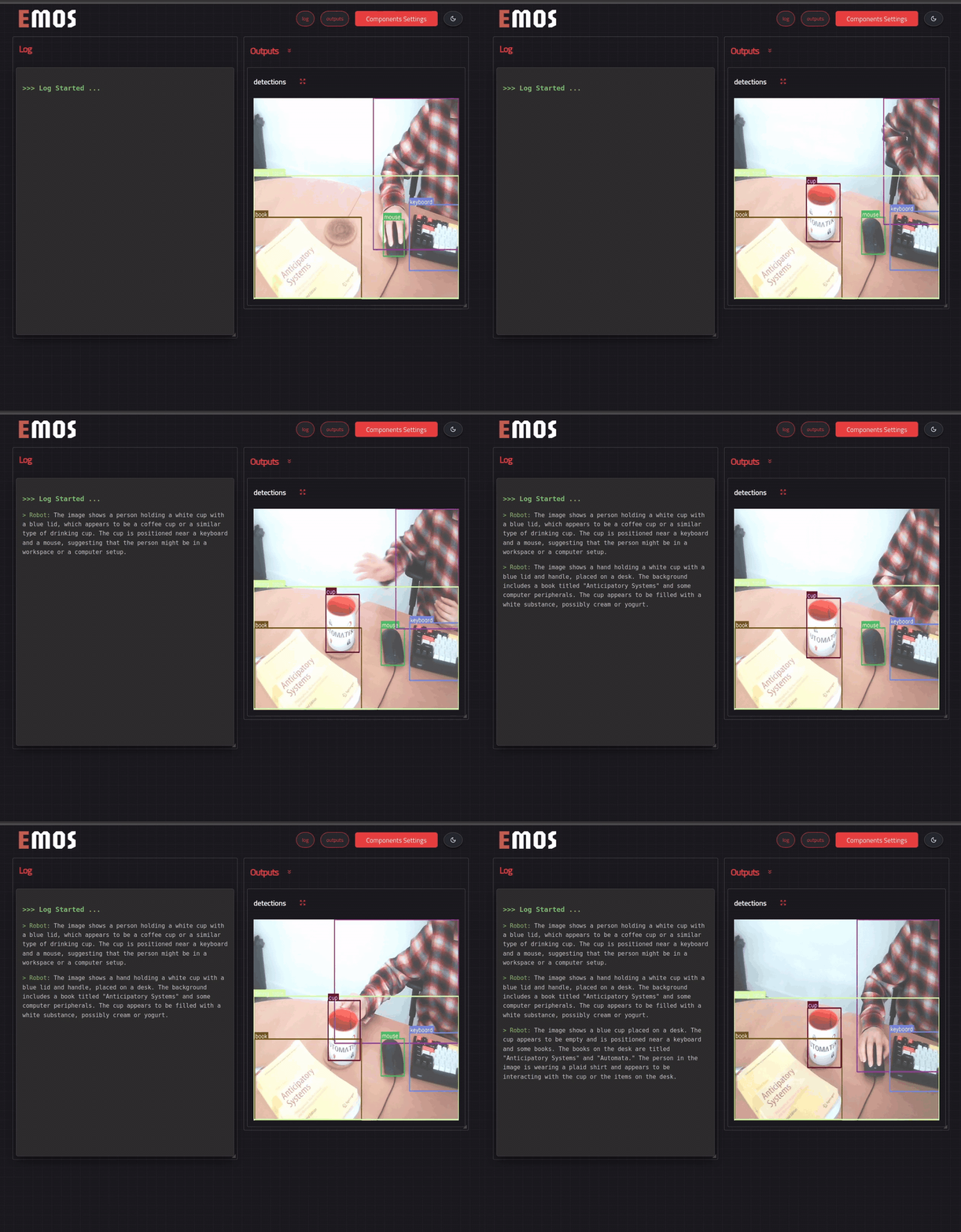
### Complete Code
Here is the complete recipe for the Event-Driven Visual Description agent:
```{code-block} python
:caption: Event-Driven Visual Description
:linenos:
from agents.components import Vision, VLM
from agents.config import VisionConfig
from agents.clients import OllamaClient
from agents.models import OllamaModel
from agents.ros import Launcher, Topic, FixedInput, Event
# Define Topics
camera_image = Topic(name="/image_raw", msg_type="Image")
detections = Topic(name="/detections", msg_type="Detections") # Output of Vision
description_output = Topic(name="/description", msg_type="String") # Output of VLM
# Setup the Vision Component (The Trigger)
# We use a lower threshold to ensure we catch people easily and we use a small local model
vision_config = VisionConfig(threshold=0.6, enable_local_classifier=True)
vision_detector = Vision(
inputs=[camera_image],
outputs=[detections],
trigger=camera_image, # Runs on every frame
config=vision_config,
component_name="eye_detector",
)
# Define the Event
# This event listens to the 'detections' topic.
# It triggers ONLY if the "labels" list inside the message contains "person"
# after not containing a person (within a 5 second interval).
event_person_detected = Event(
detections.msg.labels.contains_any(["person"]),
on_change=True, # Trigger only when a change has occurred to stop repeat triggering
keep_event_delay=5, # A delay in seconds
)
# Setup the VLM Component (The Responder)
# This component does NOT run continuously. It waits for the event.
# Setup a model client for the component
qwen_vl = OllamaModel(name="qwen_vl", checkpoint="qwen2.5vl:7b")
ollama_client = OllamaClient(model=qwen_vl)
# We define a fixed prompt that is injected whenever the component runs.
fixed_prompt = FixedInput(
name="prompt",
msg_type="String",
fixed="A person has been detected. Describe their appearance briefly.",
)
visual_describer = VLM(
inputs=[fixed_prompt, camera_image], # Takes the fixed prompt + current image
outputs=[description_output],
model_client=ollama_client,
trigger=event_person_detected, # CRITICAL: Only runs when the event fires
component_name="visual_describer",
)
# Launch
launcher = Launcher()
launcher.enable_ui(outputs=[camera_image, detections, description_output])
launcher.add_pkg(
components=[vision_detector, visual_describer],
multiprocessing=True,
package_name="automatika_embodied_agents",
)
launcher.bringup()
```
```